Tag: sharepoint 2010

  • Responsive Design with Bootstrap in SharePoint 2010

    Responsive Design with Bootstrap in SharePoint 2010

    It was a real pleasure and privilege for me to present to the Triangle SharePoint User Group this month.

    In my presentation, I demonstrated how to incorporate the Bootstrap web application framework in to SharePoint master pages and page layouts in order to deliver a responsive browsing experience.

    The full video of my presentation is up on Youtube, and shown below.

    (Note: Unfortunately, when I switched from slides to the demo, and switched the display on my laptop from ‘Extend’ mode to ‘Duplicate’ mode, SnagIt didn’t pick up on the transition and the demo portion did not get recorded properly. Thankfully the code can be seen in the video up on the projection screen.  If anyone has specific questions or wants code samples, just add a comment for this post or send me a tweet.)

  • Migration for site failed: Object reference not set to an instance of an object.

    Converting a SharePoint 2010 web application from Classic mode authentication to Claims Mode authentication is fairly well documented.

    After enabling claims mode, it is necessary to use the MigrateUsers() method to reformat the permissions entries in the Content Databases to reflect the Claims mode format.

    I have done several such conversions before without error, but this past weekend I tried another one for a client and ran in to an unusual error.

    The Web Application contained 3 content databases, and 4 site collections.

    The MigrateUsers call appeared to run successfully, and it reported no errors to the Powershell session.

    As we were testing access to the site collections, however, it became clear that one of the site collections had not been converted.

    In reviewing the ULS logs, the following entry revealed that an error had occurred during the run of the MigrateUsers method:

    Migration for site <null> failed: Object reference not set to an instance of an object.
    at
    at Microsoft.SharePoint.Administration.SPWebApplication.LogMigrationError(String name, String objectType, Exception e)
    at Microsoft.SharePoint.Administration.SPWebApplication.MigrateDatabaseHelper(SPContentDatabase database, SPCommonMigrateUserParameters commonParams, Dictionary`2 processedOldLogins)
    at Microsoft.SharePoint.Administration.SPWebApplication.MigrateUsers(IMigrateUserCallback callback)
    at MigrateUsers(Object , Object[] )
    at System.Management.Automation.DotNetAdapter.AuxiliaryMethodInvoke(Object target, Object[] arguments, MethodInformation methodInformation, Object[] originalArguments)
    at System.Management.Automation.DotNetAdapter.MethodInvokeDotNet(String methodName, Object target, MethodInformation[] methodInformation, Object[] arguments)
    at System.Management.Automation.Adapter.BaseMethodInvoke(PSMethod method, Object[] arguments)
    at System.Management.Automation.ParserOps.CallMethod(Token token, Object target, String methodName, Object[] paramArray, Boolean callStatic, Object valueToSet)
    at System.Management.Automation.MethodCallNode.InvokeMethod(Object target, Object[] arguments, Object value)
    at System.Management.Automation.MethodCallNode.Execute(Array input, Pipe outputPipe, ExecutionContext context)
    at System.Management.Automation.ParseTreeNode.Execute(Array input, Pipe outputPipe, ArrayList& resultList, ExecutionContext context)
    at System.Management.Automation.StatementListNode.ExecuteStatement(ParseTreeNode statement, Array input, Pipe outputPipe, ArrayList& resultList, ExecutionContext context)
    at System.Management.Automation.StatementListNode.Execute(Array input, Pipe outputPipe, ArrayList& resultList, ExecutionContext context)
    at System.Management.Automation.ParseTreeNode.Execute(Array input, Pipe outputPipe, ExecutionContext context)
    at System.Management.Automation.ScriptCommandProcessor.ExecuteWithCatch(ParseTreeNode ptn, Array inputToProcess)
    at System.Management.Automation.ScriptCommandProcessor.RunClause(ParseTreeNode clause, Object dollarUnderbar, Object inputToProcess)
    at System.Management.Automation.CommandProcessorBase.DoComplete()
    at System.Management.Automation.Internal.PipelineProcessor.SynchronousExecuteEnumerate(Object input, Hashtable errorResults, Boolean enumerate)
    at System.Management.Automation.Runspaces.LocalPipeline.InvokeHelper()
    at System.Management.Automation.Runspaces.LocalPipeline.InvokeThreadProc()
    at System.Management.Automation.Runspaces.PipelineThread.WorkerProc()
    at System.Threading.ExecutionContext.Run(ExecutionContext executionContext, ContextCallback callback, Object state)
    at System.Threading.ThreadHelper.ThreadStart()

    I’ll trim out the awful details of sitting on the phone with Microsoft technical support, and jump right to the fix.

    It turned out that when this SharePoint farm was upgraded from 2007 to 2010, there was a residual site collection in one of the content database.  Further, it so happened that this site collection had the same name and url as a sub site in another site collection.

    It appeared that as the MigrateUsers method was iterating through the site collections, it would follow the url to open the site collection and retrieve the users in order to convert them.  In this case, however, the url led not to a site collection, but a sub site, and thus the ‘Object reference not set to an instance of an object.’ error occurred.

    After confirming that the residual site collection was unused and contained no content, I (nervously) deleted it in Central Administration.

    I then re-ran the MigrateUsers() method, and it successfully converted the users for all site collections, and users were able to authenticate properly to the sites.

    I recognize this is an unusual situation due to the particular data in this installation.  But having found very little information about any such case, I wanted to share my experience.

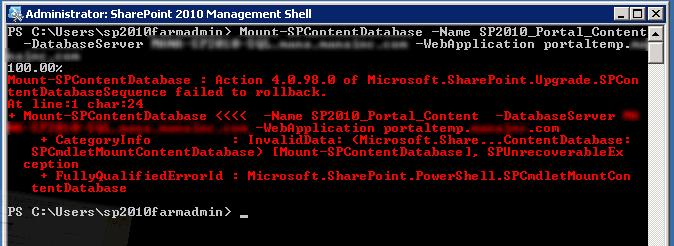
  • Action 4.0.98.0 of Microsoft.SharePoint.Upgrade.SPContentDatabaseSequence failed.

    While attempting to perform a SharePoint 2007 to SharePoint 2010 upgrade using the Database Attach Method this weekend, I ran into an error I hadn’t seen before:

    Action 4.0.98.0 of Microsoft.SharePoint.Upgrade.SPContentDatabaseSequence failed.

    Looking in to the Upgrade Error log file, I found the culprit:

    [powershell][/powershell][SPContentDatabaseSequence] [ERROR] [9/30/2012 1:03:13 PM]: Exception: The transaction log for database ‘SP2010_2007Portal_Content’ is full. To find out why space in the log cannot be reused, see the log_reuse_wait_desc column in sys.databases

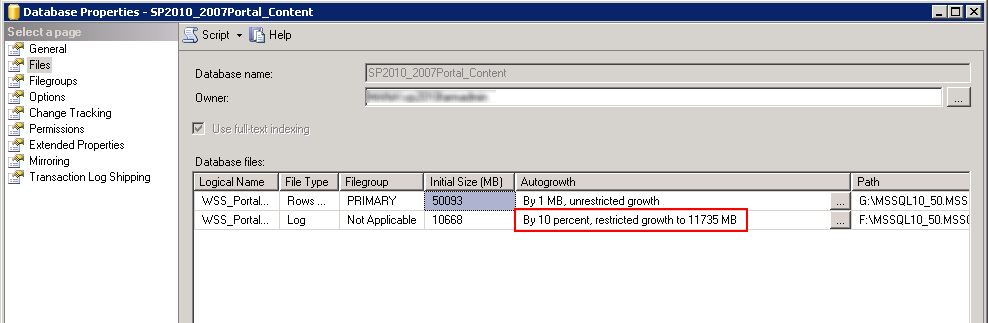
    It turns out that the database I had restored had a Maximum Size setting for the transaction log.  The Property pages for the Database revealed this fact:

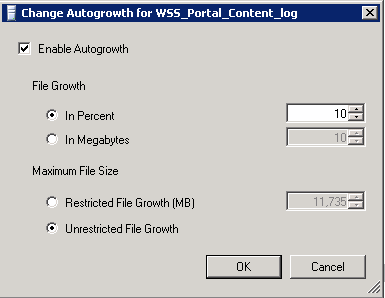
    I went ahead and changed the autogrowth settings to allow unrestricted growth.

    I then retried the Upgrade/Mount of the database and it went through without any errors.

  • Add root certificate as trusted source in SharePoint 2010

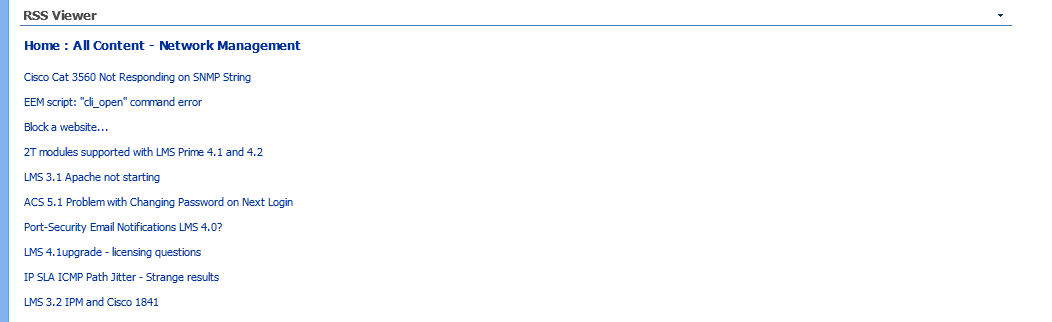
    Following a recent SharePoint 2007 to 2010 upgrade, we got a report of an RSS Viewer that was not displaying any content.

    The message shown was “The requested RSS feed could not be displayed. Please verify the settings and url for this feed. If this problem persists, please contact your administrator.”

    After confirming for myself, I checked the feed that the RSS Viewer was pulling, and found it was from the Cisco support forums at https://supportforums.cisco.com/community/feeds/video?community=2004.

    Next we checked the SharePoint Logs to find the following entry:

    04/02/2012 10:17:05.24         w3wp.exe (0x4610)                               0x3D3C        SharePoint Portal Server              Web Parts                             8imh        High            RssWebPart: Exception handed to HandleRuntimeException.HandleException System.Net.WebException: The underlying connection was closed: Could not establish trust relationship for the SSL/TLS secure channel. —> System.Security.Authentication.AuthenticationException: The remote certificate is invalid according to the validation procedure. at System.Net.Security.SslState.StartSendAuthResetSignal(ProtocolToken message, AsyncProtocolRequest asyncRequest, Exception exception)     at System.Net.Security.SslState.ProcessReceivedBlob(Byte[] buffer, Int32 count, AsyncProtocolRequest asyncRequest)     at System.Net.Security.SslState.StartReceiveBlob(Byte[] buffer, AsyncProtocolRequest asyncRequest)     at System.Net.Security.SslState.ProcessReceivedBlob(Byte[] buffer, Int32 count, AsyncProtocolRe…        193b14f8-f282-438d-bf91-36bb7c640d03

    A corresponding entry in the Event log was also a clue.

    An operation failed because the following certificate has validation errors:\n\nSubject Name: CN=supportforums.cisco.com, OU=Communications and Collaboration Team, O=Cisco Systems, L=San Jose, S=CALIFORNIA, C=US\nIssuer Name: CN=VeriSign Class 3 Secure Server CA – G3, OU=Terms of use at https://www.verisign.com/rpa (c)10, OU=VeriSign Trust Network, O=”VeriSign, Inc.”, C=US\nThumbprint: CAF5027FDDE630D4AC3FFB1000FC2E09B18249A3\n\nErrors:\n\n The root of the certificate chain is not a trusted root authority..

    What was going on?

    The Cisco site had a chain of SSL certificates that was 3 layers deep.

    1. A root certificate
    2. An intermediate or secondary certificate
    3. A site certificate

    As the RSS Viewer attempted to connect to this location, it connects as the SharePoint service, not as a browser.  SharePoint then tried to travel up the certificate chain to confirm the authenticity of each layer. When it got to the intermediate certificate, it choked, not able to validate it as a legitimately trusted source.

    How do we fix it?

    In order for SharePoint to recognize the Verisign certificates chained together and used by the Cisco site, we need to explicitly tell SharePoint they are trustworthy.  Thankfully, there is a simple to use UI as part of Central Administration where we can do just that.

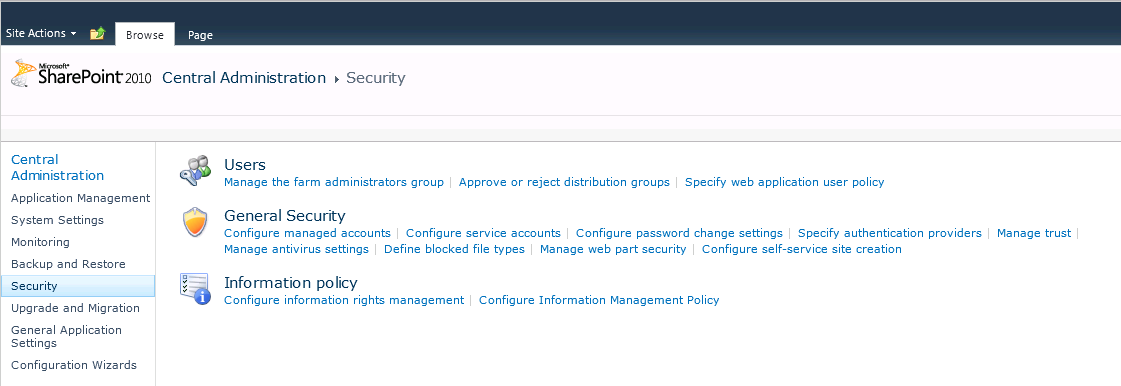
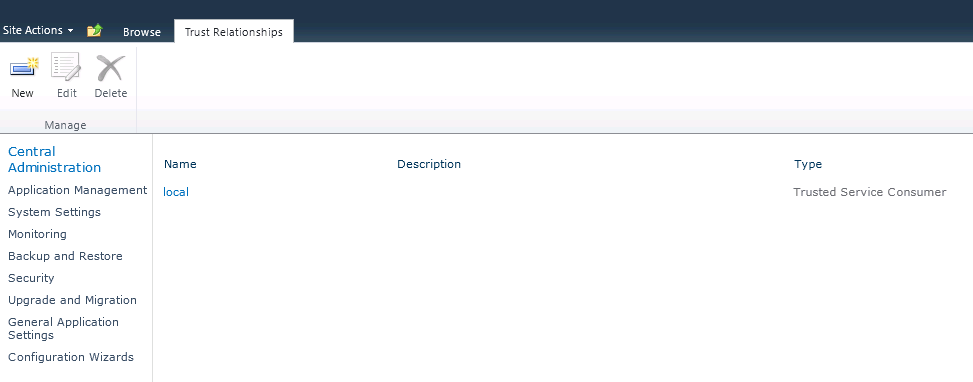
    First, log in to Central Administration, then click on the ‘Security’ menu item.

    Then, select ‘Manage Trust’ from the ‘General Security’ section.

    Before we can add the Verisign certificates as trusted relationships, we have to retrieve them from the Verisign website.  All of Verisigns root and secondary certificates can be found at https://www.verisign.com/support/roots.html

    By examining the certificate details in the Browser, we can determine which root certificate to download and add to SharePoint.  In our case, there needed root was:

    Root 3
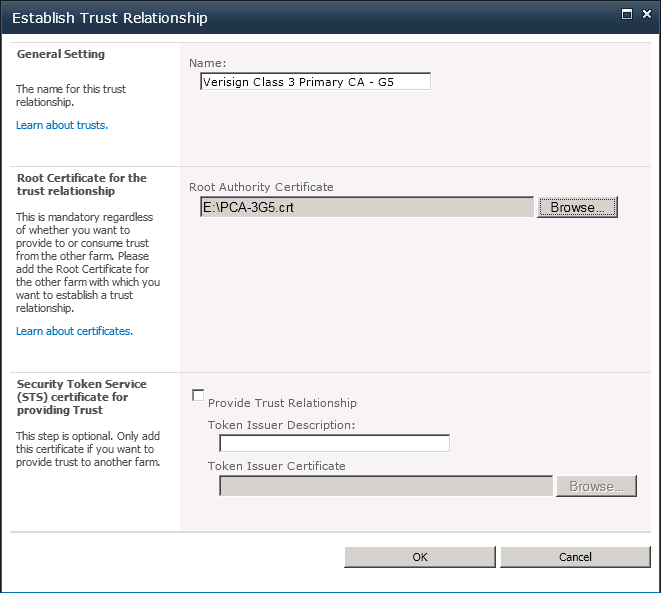
    VeriSign Class 3 Primary CA – G5
    Description:
    This root CA is the root used for VeriSign Extended validation Certificates and should be included in root stores. During Q4 2010 this root will also be the primary root used for all VeriSign SSL and Code Signing certificates.

    Download the Root Certificate file.

    Now, add the Trust Relationship to SharePoint

    After that certificate is in place, you can return to the page with the RSS Viewer and confirm it is able to retrieve the results.

    If not, then there may be additional certificates in the chain that you would need to retrieve and add to SharePoint.

    The Trust Relationships in SharePoint are also used when calling out to an external web service from a web part.

    Thanks to https://blog.mattsampson.net/index.php/calling-a-webservice-over-ssl-in-sharepoint-ssl?blog=1 for helping guide the way.