So I’ve got a PowerView report hosted in SharePoint. And it throws up the following when I try to load it:
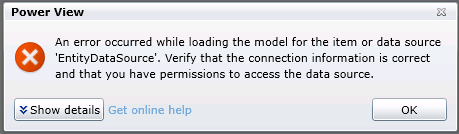
The full error details are:
<detail><ErrorCode xmlns="https://www.microsoft.com/sql/reportingservices">rsCannotRetrieveModel</ErrorCode><HttpStatus xmlns="https://www.microsoft.com/sql/reportingservices">400</HttpStatus><Message xmlns="https://www.microsoft.com/sql/reportingservices">An error occurred while loading the model for the item or data source 'EntityDataSource'. Verify that the connection information is correct and that you have permissions to access the data source.</Message><HelpLink xmlns="https://www.microsoft.com/sql/reportingservices">https://go.microsoft.com/fwlink/?LinkId=20476&EvtSrc=Microsoft.ReportingServices.Diagnostics.Utilities.ErrorStrings&EvtID=rsCannotRetrieveModel&ProdName=Microsoft%20SQL%20Server%20Reporting%20Services&ProdVer=11.0.3128.0</HelpLink><ProductName xmlns="https://www.microsoft.com/sql/reportingservices">Microsoft SQL Server Reporting Services</ProductName><ProductVersion xmlns="https://www.microsoft.com/sql/reportingservices">11.0.3128.0</ProductVersion><ProductLocaleId xmlns="https://www.microsoft.com/sql/reportingservices">127</ProductLocaleId><OperatingSystem xmlns="https://www.microsoft.com/sql/reportingservices">OsIndependent</OperatingSystem><CountryLocaleId xmlns="https://www.microsoft.com/sql/reportingservices">1033</CountryLocaleId><MoreInformation xmlns="https://www.microsoft.com/sql/reportingservices"><Source>ReportingServicesLibrary</Source><Message msrs:ErrorCode="rsCannotRetrieveModel" msrs:HelpLink="https://go.microsoft.com/fwlink/?LinkId=20476&EvtSrc=Microsoft.ReportingServices.Diagnostics.Utilities.ErrorStrings&EvtID=rsCannotRetrieveModel&ProdName=Microsoft%20SQL%20Server%20Reporting%20Services&ProdVer=11.0.3128.0" xmlns:msrs="https://www.microsoft.com/sql/reportingservices">An error occurred while loading the model for the item or data source 'EntityDataSource'. Verify that the connection information is correct and that you have permissions to access the data source.</Message><MoreInformation><Source>Microsoft.ReportingServices.ProcessingCore</Source><Message msrs:ErrorCode="rsErrorOpeningConnection" msrs:HelpLink="https://go.microsoft.com/fwlink/?LinkId=20476&EvtSrc=Microsoft.ReportingServices.Diagnostics.Utilities.ErrorStrings&EvtID=rsErrorOpeningConnection&ProdName=Microsoft%20SQL%20Server%20Reporting%20Services&ProdVer=11.0.3128.0" xmlns:msrs="https://www.microsoft.com/sql/reportingservices">Cannot create a connection to data source 'EntityDataSource'.</Message><MoreInformation><Source>Microsoft.AnalysisServices.AdomdClient</Source><Message>Authentication failed.</Message><MoreInformation><Source>Microsoft.AnalysisServices.AdomdClient</Source><Message>No credentials are available in the security package</Message></MoreInformation></MoreInformation></MoreInformation></MoreInformation><Warnings xmlns="https://www.microsoft.com/sql/reportingservices" /></detail>
And so begins the journey of trying to uncover just which set of credentials isn’t in the right place. Let’s stop and look at the flow that occurs when you try to load that report:
PowerView Report hands off to BI Semantic Model (also hosted on SharePoint on the WFE server, running under an application pool)
BI Semantic Model points to SQL Server Analysis Server Instance on your SQL Server.
Credential check occurs on SSAS Instance to determine if adequate permissions exist for requesting user. If so, query runs, data sent back, and report displays. If not, we get an error like the one above.
Like many things in SharePoint, this transaction can be governed by Kerberos, which facilitates the passing of credentials from one server or service to another. It’s easy to confirm if this is a Kerberos issue by changing our report to use a specific username and password.
In the PowerView gallery, change to the All Documents view, then drop down the menu for your specific report and select Manage Data Sources.
In my case, the entry for EntityDataSource is shown. Click on that to get the details.
Here’s what happens when we use the Windows authentication (integrated) or SharePoint user option and click Test Connection. No worky.
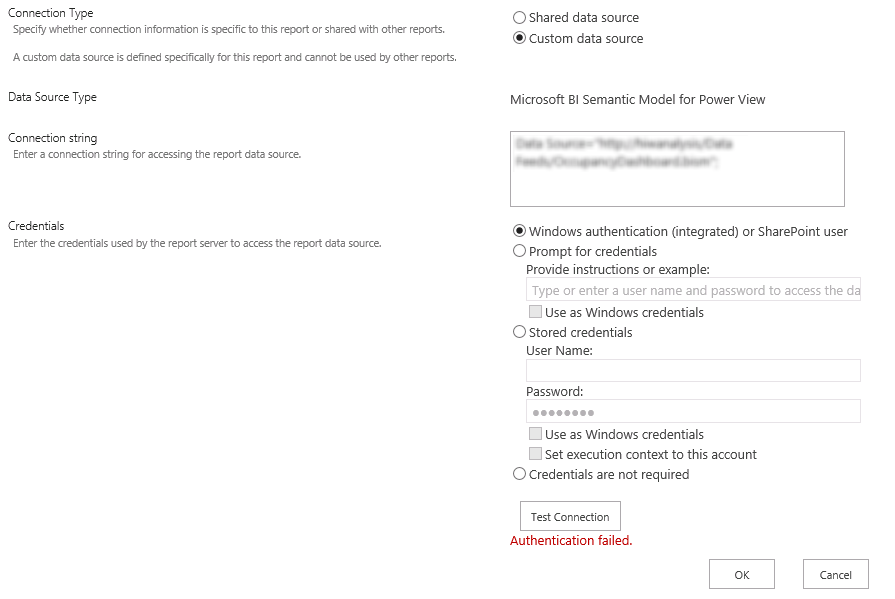
Here’s what happens when we put in specific credentials and click Test Connection.

So while the symptoms and appears would point to a Kerberos configuration issue, in truth, the solution (in my case) lies with the Claims to Windows Token Service.
By default, this service is provisioned to run as Local System. But there is guidance to run this as a domain account. However, in doing so, additional local security policy changes must be made on the server on which the service is running, in this case, the SQL server.
The domain account used by the Claims to Windows Token Service needs to be granted the following rights through the Local Security Policy:
1. Act as part of the operating system
2. Impersonate a client after authentication
3. Log on as a service
You can find these settings under Administrative Tools > Local Security Policy > Local Policies > User Rights Assignment.
No reboot is necessary for these changes to take effect. As soon as I returned to my PowerView report and refreshed, the report loaded without error.
Hat tip to this thread for pointing me in the right direction.