Tag: exceptions

  • SQL Server 2012 SP1 Reporting Services Add-In for SharePoint installation fails with error 1603 – SOLVED!

    SQL Server 2012 SP1 Reporting Services Add-In for SharePoint installation fails with error 1603 – SOLVED!

    Oh, the depths of the nuances found in SharePoint.

    While setting up a new SharePoint 2013 farm that included the Business Intelligence components, we were not able to get the Reporting Services Add-In to successfully install.  The installer would run all the way through, then roll back the entire thing and show this:
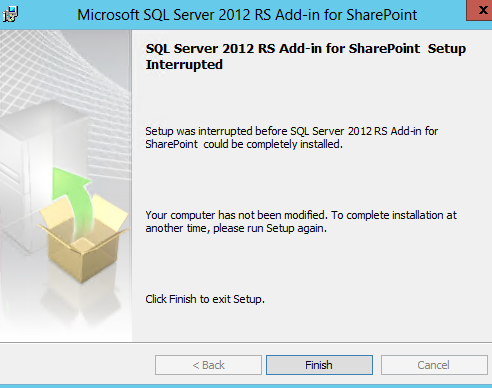
    Failed Install

    Looking to the log of the installer, here’s what we found:

    2014-01-08 11:27:54: User: svc_sp2013farmadmin
    2014-01-08 11:27:54: Installing Report Server feature.
    2014-01-08 11:27:58: Beginning uninstall of cab files.
    2014-01-08 11:27:58: Cab files uninstalled successfully.
    2014-01-08 11:27:58: Calling copyappbincontents command.
    2014-01-08 11:28:52: SharePoint Products Configuration Wizard version 15.0.4420.1017. Copyright (C) Microsoft Corporation 2012. All rights reserved.

    Performing configuration task 1 of 3
    Initializing SharePoint Products configuration...

    Successfully initialized the SharePoint Products configuration.

    Performing configuration task 2 of 3
    Installing the application content files...

    Installing the SharePoint Central Administration Web Application content files...

    Installing the SharePoint Web Application content files...

    Failed to install the application content files.

    An exception of type System.NullReferenceException was thrown. Additional exception information: Object reference not set to an instance of an object.

    Total number of configuration settings run: 2
    Total number of successful configuration settings: 1
    Total number of unsuccessful configuration settings: 1
    Successfully stopped the configuration of SharePoint Products.
    Configuration of SharePoint Products failed. Configuration must be performed before you use SharePoint Products. For further details, see the diagnostic log located at D:\SharePointLogs\PSCDiagnostics_1_8_2014_11_27_58_106_1169585150.log and the application event log.

    I swear Object reference not set to an instance of an object is the most infuriating error message ever created.

    We also were getting an event log entry.

    Failed to install the application content files.
    An exception of type System.NullReferenceException was thrown. Additional exception information: Object reference not set to an instance of an object.
    System.NullReferenceException: Object reference not set to an instance of an object.
    at Microsoft.SharePoint.Administration.SPAspConfigurationFile.ApplyActionToXmlDocument(XmlDocument xdAction, XmlDocument xd, String sourceFileName, SupportedXmlDocutmentActions supportedActions)
    at Microsoft.SharePoint.Administration.SPAspConfigurationFile.MergeWebConfig(XmlDocument xdWebConfig, String fileMask)
    at Microsoft.SharePoint.Administration.SPWebService.ApplyApplicationContentToLocalServer()
    at Microsoft.SharePoint.PostSetupConfiguration.ApplicationContentTask.Run()
    at Microsoft.SharePoint.PostSetupConfiguration.TaskThread.ExecuteTask()

    After a bit of searching I finally came across this thread on MSDN, which suggested (of all things) to remove any Comments from the web.config files for my web applications.  Odd, but worth a try.

    I found the following in the web.config for my MySites web application.  I don’t remember commenting that line out, but I went ahead and removed the comments and saved the file.

    <modules runAllManagedModulesForAllRequests="true">
    <remove name="AnonymousIdentification" />
    <remove name="FileAuthorization" />
    <remove name="Profile" />
    <remove name="WebDAVModule" />
    <!--<remove name="Session" />-->
    ...
    </modules>

    I then re-ran the Installer for Reporting Services, and sure enough, it finished successfully.

    Given that the comment is legitimate XML markup it seems odd that the SharePoint Configuration Wizard would choke on it.  But nevertheless, I’m past this issue an on to the next one.
  • Migration for site failed: Object reference not set to an instance of an object.

    Converting a SharePoint 2010 web application from Classic mode authentication to Claims Mode authentication is fairly well documented.

    After enabling claims mode, it is necessary to use the MigrateUsers() method to reformat the permissions entries in the Content Databases to reflect the Claims mode format.

    I have done several such conversions before without error, but this past weekend I tried another one for a client and ran in to an unusual error.

    The Web Application contained 3 content databases, and 4 site collections.

    The MigrateUsers call appeared to run successfully, and it reported no errors to the Powershell session.

    As we were testing access to the site collections, however, it became clear that one of the site collections had not been converted.

    In reviewing the ULS logs, the following entry revealed that an error had occurred during the run of the MigrateUsers method:

    Migration for site <null> failed: Object reference not set to an instance of an object.
    at
    at Microsoft.SharePoint.Administration.SPWebApplication.LogMigrationError(String name, String objectType, Exception e)
    at Microsoft.SharePoint.Administration.SPWebApplication.MigrateDatabaseHelper(SPContentDatabase database, SPCommonMigrateUserParameters commonParams, Dictionary`2 processedOldLogins)
    at Microsoft.SharePoint.Administration.SPWebApplication.MigrateUsers(IMigrateUserCallback callback)
    at MigrateUsers(Object , Object[] )
    at System.Management.Automation.DotNetAdapter.AuxiliaryMethodInvoke(Object target, Object[] arguments, MethodInformation methodInformation, Object[] originalArguments)
    at System.Management.Automation.DotNetAdapter.MethodInvokeDotNet(String methodName, Object target, MethodInformation[] methodInformation, Object[] arguments)
    at System.Management.Automation.Adapter.BaseMethodInvoke(PSMethod method, Object[] arguments)
    at System.Management.Automation.ParserOps.CallMethod(Token token, Object target, String methodName, Object[] paramArray, Boolean callStatic, Object valueToSet)
    at System.Management.Automation.MethodCallNode.InvokeMethod(Object target, Object[] arguments, Object value)
    at System.Management.Automation.MethodCallNode.Execute(Array input, Pipe outputPipe, ExecutionContext context)
    at System.Management.Automation.ParseTreeNode.Execute(Array input, Pipe outputPipe, ArrayList& resultList, ExecutionContext context)
    at System.Management.Automation.StatementListNode.ExecuteStatement(ParseTreeNode statement, Array input, Pipe outputPipe, ArrayList& resultList, ExecutionContext context)
    at System.Management.Automation.StatementListNode.Execute(Array input, Pipe outputPipe, ArrayList& resultList, ExecutionContext context)
    at System.Management.Automation.ParseTreeNode.Execute(Array input, Pipe outputPipe, ExecutionContext context)
    at System.Management.Automation.ScriptCommandProcessor.ExecuteWithCatch(ParseTreeNode ptn, Array inputToProcess)
    at System.Management.Automation.ScriptCommandProcessor.RunClause(ParseTreeNode clause, Object dollarUnderbar, Object inputToProcess)
    at System.Management.Automation.CommandProcessorBase.DoComplete()
    at System.Management.Automation.Internal.PipelineProcessor.SynchronousExecuteEnumerate(Object input, Hashtable errorResults, Boolean enumerate)
    at System.Management.Automation.Runspaces.LocalPipeline.InvokeHelper()
    at System.Management.Automation.Runspaces.LocalPipeline.InvokeThreadProc()
    at System.Management.Automation.Runspaces.PipelineThread.WorkerProc()
    at System.Threading.ExecutionContext.Run(ExecutionContext executionContext, ContextCallback callback, Object state)
    at System.Threading.ThreadHelper.ThreadStart()

    I’ll trim out the awful details of sitting on the phone with Microsoft technical support, and jump right to the fix.

    It turned out that when this SharePoint farm was upgraded from 2007 to 2010, there was a residual site collection in one of the content database.  Further, it so happened that this site collection had the same name and url as a sub site in another site collection.

    It appeared that as the MigrateUsers method was iterating through the site collections, it would follow the url to open the site collection and retrieve the users in order to convert them.  In this case, however, the url led not to a site collection, but a sub site, and thus the ‘Object reference not set to an instance of an object.’ error occurred.

    After confirming that the residual site collection was unused and contained no content, I (nervously) deleted it in Central Administration.

    I then re-ran the MigrateUsers() method, and it successfully converted the users for all site collections, and users were able to authenticate properly to the sites.

    I recognize this is an unusual situation due to the particular data in this installation.  But having found very little information about any such case, I wanted to share my experience.

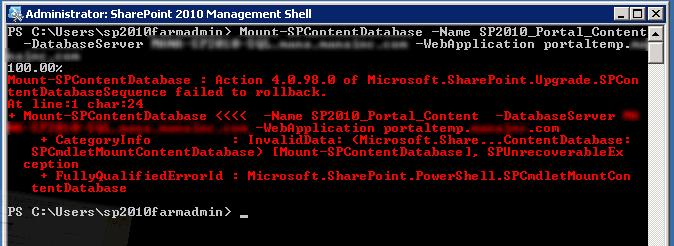
  • Action 4.0.98.0 of Microsoft.SharePoint.Upgrade.SPContentDatabaseSequence failed.

    While attempting to perform a SharePoint 2007 to SharePoint 2010 upgrade using the Database Attach Method this weekend, I ran into an error I hadn’t seen before:

    Action 4.0.98.0 of Microsoft.SharePoint.Upgrade.SPContentDatabaseSequence failed.

    Looking in to the Upgrade Error log file, I found the culprit:

    [powershell][/powershell][SPContentDatabaseSequence] [ERROR] [9/30/2012 1:03:13 PM]: Exception: The transaction log for database ‘SP2010_2007Portal_Content’ is full. To find out why space in the log cannot be reused, see the log_reuse_wait_desc column in sys.databases

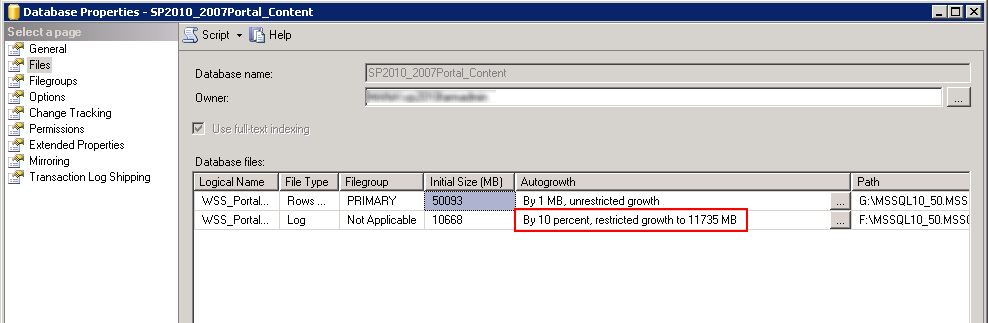
    It turns out that the database I had restored had a Maximum Size setting for the transaction log.  The Property pages for the Database revealed this fact:

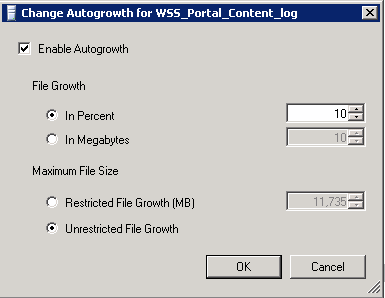
    I went ahead and changed the autogrowth settings to allow unrestricted growth.

    I then retried the Upgrade/Mount of the database and it went through without any errors.

  • Unable to start debugging on the web server.

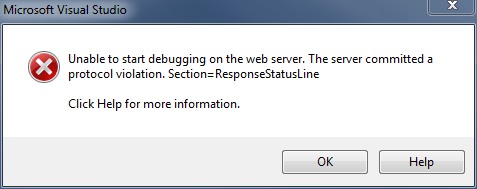
    This morning I got the following error when trying to run a project in Visual Studio 2010.

    After a bit of digging, I found that IIS was not running on my PC.  I tried using iisreset but it did not start up.

    A system reboot was all it took to get IIS cleared up and started without any exceptions.  I will note that a Windows Update had just occurred the night before.

  • Incoming Tabular Data Stream Incorrect

    This morning my team fielded an error we had not seen before in a production site.  When performing a lookup, the following exception bubbled up:

    The incoming tabular data stream (TDS) remote procedure call (RPC) protocol stream is incorrect.  Too many parameters were provided in this RPC request.  The maximum is 2100.

    Upon investigation, we found that a Linq query using the .Contains() clause was the culprit.

    It appears that Entity Framework was translating the .Contains() clause to a WHERE x IN () when setting up the SQL SELECT statement to run.  In our case, we had done a retrieval of records first, then passed that list into the Contains.  It worked fine until the list exceeded 2100 entries.

    We were able to just refactor our lookup to eliminate the .Contains() clause.

    Part of what made this an unusual case was that even in production, this system had run for 2 years without any issues.  But as the number of records grew through the system’s use, it was only a matter of time before we exceeded that boundary imposed by SQL Server.