Category: Tips and Tricks

  • The issuer of the token is not a trusted issuer. [Beware of hidden characters]

    The issuer of the token is not a trusted issuer. [Beware of hidden characters]

    There are a lot of articles related to this error message, typically seen when trying to run an on-premise SharePoint provider-hosted add-in in a high trust configuration.  I know because I read all of them.

    For me, there was no (visible) evidence that the IssuerId in my web.config was different than the RegisteredIssuerName value of my Trusted Security Token Issuer entry.  I checked and rechecked it dozens of times.

    Finally I put some tracing in the the code to see what was actually being sent to the SharePoint.  The creation of the authentication token is in the TokenHelper.cs class in the IssueToken method (about line 778).  Line 796 is where it gets the issuer id value.

    token-helper-code

    Here’s the screenshot of our trace log file reporting out the value being read from the web.config.  Notice anything unusual?

    issuerid-hidden-character

    There are some warnings related to cutting-and-pasting the Certificate Serial number picking up hidden characters – but somehow our entry in the web.config for the IssuerId also got a hidden character inserted in.  The “??” is passed along as part of the issuer ID value and causes the mismatch.

    I manually retyped the line in the web.config, saved, and reran the app.  This time it came through clean with no errors simply because the values exactly matched.

    By all appearances the values were the same, but the hidden character caused them to be different.

    Add this to your checklist of things to review if you hit this error – hopefully it won’t take you several days like it too me and my team.


  • Page Layout not shown in Design Manager

    Page Layout not shown in Design Manager

    If you have created a custom page layout from Design Manager, it will have an .html extension.  When this file is uploaded to the _catalogs/masterpage gallery, an event receiver will convert the file to a matching .aspx page layout.

    However, I found a case where the .html file will not show in the Design Manager as you would expect.

    I’ve been using the Patterns and Practices console application method for deploying branding assets, and it is a great way to push your branding related files up to a target SharePoint site.  However, in the UploadPageLayout() method, it is assigning all files that are uploaded with the Page Layout content type.

    If you use this against a .html file, it will upload fine, and will generate the .aspx file, but the .aspx will not be published, and the page layout will not be shown in Design Manager.

    I’ve adjusted the SetPageLayoutMetadata() method as shown below to properly set the .html file with the Html Page Layout content type, which will allow it to be seen in the Design manager – as well as ensuring that the corresponding .aspx is published.

    private static void SetPageLayoutMetadata(Web web, File uploadFile, string title, string publishingAssociatedContentType)
    {
      var parentContentTypeId = "0x01010007FF3E057FA8AB4AA42FCB67B453FFC100E214EEE741181F4E9F7ACC43278EE811"; //Page Layout
    
      if(uploadFile.Name.ToLower().Contains(".html")) {
        parentContentTypeId = "0x01010007FF3E057FA8AB4AA42FCB67B453FFC100E214EEE741181F4E9F7ACC43278EE8110003D357F861E29844953D5CAA1D4D8A3B"; //Html Page Layout
      }
    
      var gallery = web.GetCatalog(116);
      web.Context.Load(gallery, g => g.ContentTypes);
      web.Context.ExecuteQuery();
    
      var contentTypeId = gallery.ContentTypes.FirstOrDefault(ct => ct.StringId.StartsWith(parentContentTypeId)).StringId;
      var item = uploadFile.ListItemAllFields;
      web.Context.Load(item);
    
      item["ContentTypeId"] = contentTypeId;
      item["Title"] = title;
      item["PublishingAssociatedContentType"] = publishingAssociatedContentType;
    
      item.Update();
      web.Context.ExecuteQuery();
    }
    
  • How does co-editing work in SharePoint 2013?

    How does co-editing work in SharePoint 2013?

    This week I was on site with a client discussing how to further leverage SharePoint in their business, and our conversation came around to how to better equip their field engineers and staff.  Specifically, I shared about the document library Sync feature.  One question came up regarding how SharePoint will reconcile changes if one employee modifies a file from their synchronized local copy, and another employee modifies the file directly from the Document Library.

    It’s a typical question and one I thought I’d answer using a live demo.  The video below illustrates how co-editing can work for both online and offline users.  I hope you find it helpful.

    (BTW: I’m going to try to start creating more of these kinds of Q&A videos, so if you have a suggestion for a question or explanation of a SharePoint feature, please comment on this post and share your idea.)

  • New SharePoint library not showing in Quick Launch after selecting Yes in Library settings

    New SharePoint library not showing in Quick Launch after selecting Yes in Library settings

    A client reported this issue to me this week.  They had added a new Document Library to a Team Site, and had assigned specific permissions to it.  However, it was never being displayed on the Quick Launch navigation.

    We checked the obvious things:

    1. Yes, the Display this document library on the Quick Launch? setting was set to Yes.
    2. Yes, the user had permissions to the site and document library.
    3. We hid and then displayed the Quick Launch using the Site Settings -> Tree View options.

    While initially we thought this might be some weird behavior in permissions, I came across this post that mentioned the Current Navigation settings for the site.  So I checked there.

    I found that the Current Navigation settings were fine, set to display the navigation items below the current site.

    What I also found, however, was that the Structural Navigation: Sorting option was set to Sort Manually.  When I looked in the list of items available for editing and re-sorting the navigation items, the new Library was not shown.

    navigation-sort

    So I flipped the setting to Sort Automatically, and voila, the library appeared in the Navigation items display.  As soon as I saved the navigation settings with the automatic sort, the library also appeared on the Quick Launch menu.

    It appears that if the manual sort option is in force, then it is based on a snapshot of the navigation items, and you’d have to manually add the newly added library to the Navigation hierarchy.

    Hope that helps someone out there!

  • What’s New in ASP.NET Identity and other valuable lessons learned

    This month I had the opportunity to fulfill one of my goals for 2014 by presenting to the Triangle .NET User group.  This was a fun night with some great interaction.

    However, I learned a valuable lesson.  No matter how much you prepare, there will always be something unexpected.

    I always record my presentations.  I do this for several reasons.  First, it gives me the ability to share with the community and benefit those who can’t attend an event.  Secondly, I use them to learn and improve my own presentation style and skill.  Watching myself, getting over-sensitive about my verbal tics (you know?), and seeing how I interact with the audience are all things that help me get better as a speaker.

    This event was no different – I’d gotten to the venue early, made sure all my slides and demos were in order, and checked Camtasia to make sure recording would work on the projector (every venue is different.)  Everything was in order.  I felt great.  I was ready to go.

    The first half of the presentation was going smooth.  I felt like I was hitting all my key points, and was getting good questions and comments from the audience.

    Then I took a question I shouldn’t have.  I tried to say “let’s come back to this afterwards” but somehow I got persuaded to diverge from my flow.  And then I went to set a breakpoint in the demo code so we could see what was happening.  I did something I do dozens of times a day while coding.  But this wasn’t a normal coding session.  In this case, pressing F9 to set that breakpoint in Visual Studio did more than I expected.  I didn’t catch it in the moment.

    Visual Studio never got that F9 keypress, because Camtasia intercepted it.  And did exactly what it was set to do.  It stopped recording.

    I went on with the rest of my presentation, still feeling good, still interacting with the audience, still hitting all my points and nailing my demos.  But it wasn’t recorded.

    After the meeting that night, I was at home, reviewing the video of the session.  And then it just went black.  I realized immediately what had happened.  I may have said a few words in frustration.  I was deeply disappointed.

    Eventually I composed myself and realized the teachable moment I had before me.  The opportunity to encourage others to check for the unexpected hiccup in their preparation.  To remind others and myself that the best laid plans still are vulnerable to mishaps.

    It reminded me of something I try to teach my children – that sometimes we learn best through our mistakes.

    So here is the first 47 minutes of my presentation that night.  I trust that even in its abbreviated form, there is value in the content.  But be assured, next time, Camtasia won’t listen to any hotkeys.

  • Update User Profile photo using Workflow

    Update User Profile photo using Workflow

    Update: I’ve added a video walkthrough of this technique.

    In my last post, I talked about using a Powershell script to import user profile photos from a SharePoint Picture Library in to the MySites users profile.

    That works great to sync up the photos from the library as a batch.  But what happens when you add a new employee photo to the library?  We need something to automatically update the MySite user profile, and a custom workflow will do just that.

    Here’s the general logic for our workflow:

    When an item is added or updated,

    1. Check if a User Name has been set.  If so, 
    2. Retrieve the User’s Profile
    3. Set the ‘PictureUrl’ value to the Url of the item in the picture library.
    4. Save the Profile record.
    5. Regenerate the Thumbnail sizes used by MySites.

    Unfortunately, out of the box, SharePoint Designer workflows will not allow you to manipulate the User Profile.  I made an attempt to use the Virto Software Workflow Activities add-on, but was not able to get it working as I expected.  (UPDATE: This may have been a permissions issue. YMMV)

    So, we need to use a Visual Studio Sequential Workflow in order to get full access to the User Profile.  Here are the steps.

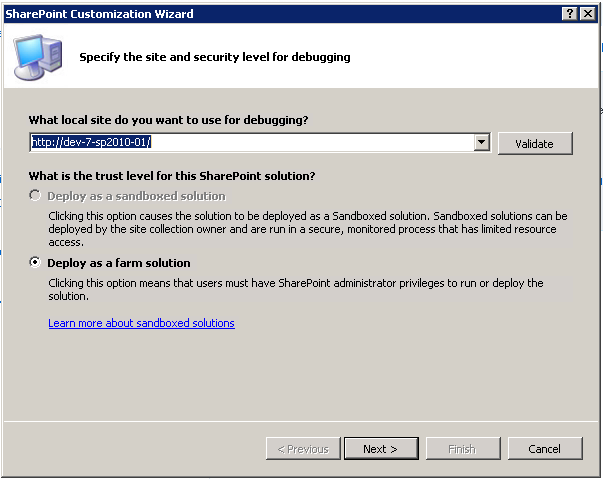
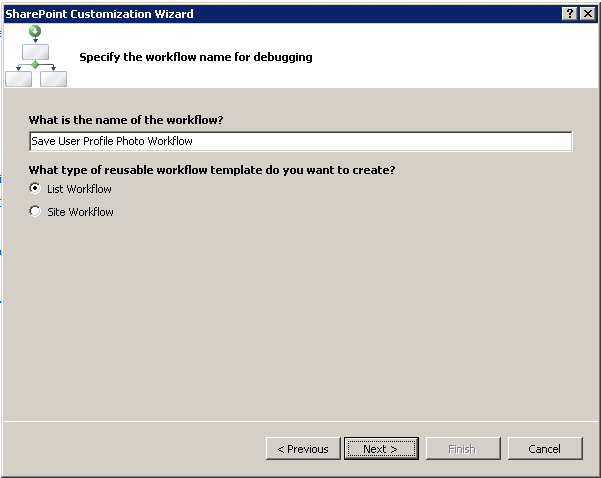
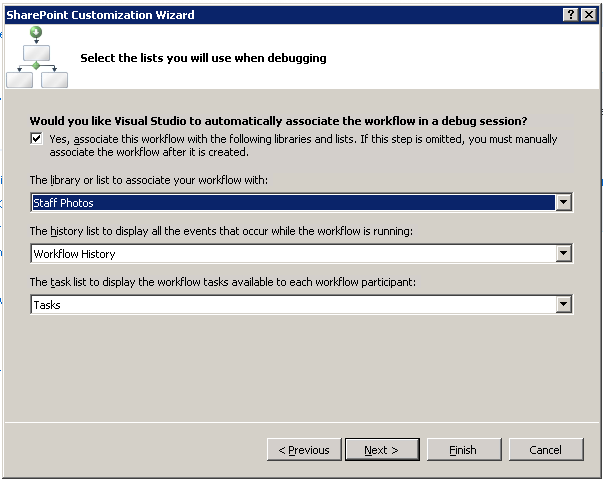
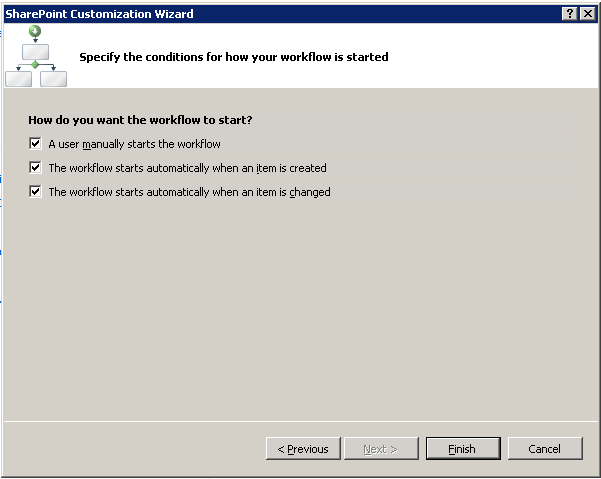
    First, create a new Sequential Workflow project in Visual Studio and go through the wizard
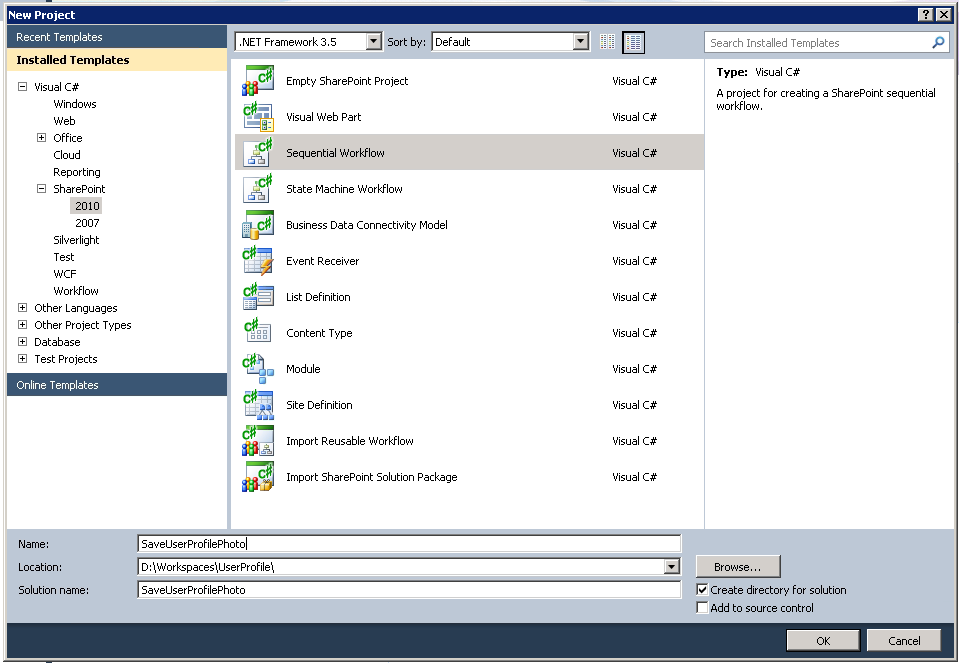
    01_NewProject

    02_ProjectWiz-1

    03_ProjectWiz-2

    04_ProjectWiz-3

    05_ProjectWiz-4

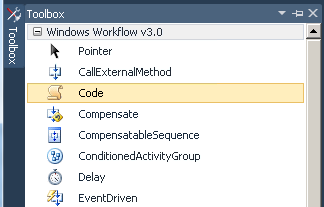
    Next, with the Workflow Designer open, select a ‘Code’ element from the Toolbox and drag it on to the workflow after the onWorkflowActivated1 event.
    06_WorkflowToolbox

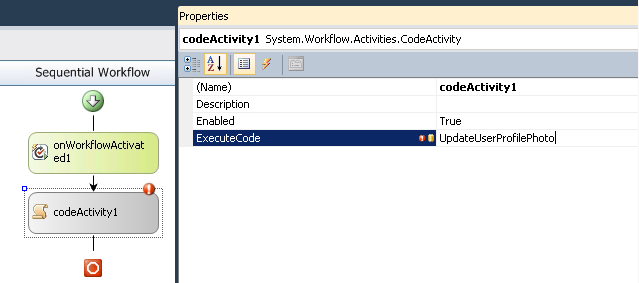
    View the Properties for the Code element, and set the ExecuteCode property to “UpdateUserProfilePhoto”.  This will stub out a new method for you in the code file.
    07_SetExecuteCode

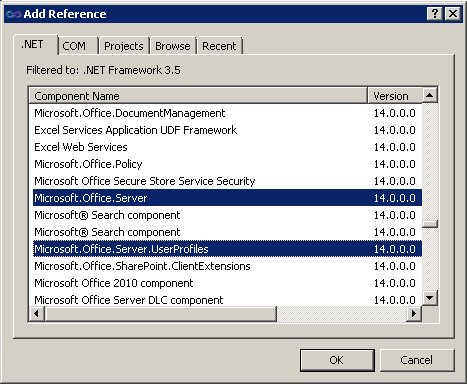
    Now, add the following references to your project:

    • Microsoft.Office.Server (14.0.0.0)
    • Microsoft.Office.Server.UserProfiles (14.0.0.0)
    • System.Web (2.0.0.0)

    08_AddReferences

    In your workflow code file, add the following using statements

    using Microsoft.Office.Server.UserProfiles;
    using Microsoft.SharePoint.Administration;
    using System.Web;

    And then add this code to the UpdateUserProfilePhoto method to implement our workflow sequence.

    private void UpdateUserProfilePhoto(object sender, EventArgs e)
    {
      try
      {
    
        //get username
        Microsoft.SharePoint.SPFieldUser fieldUser =
         (Microsoft.SharePoint.SPFieldUser)workflowProperties.Item.Fields.GetField("User Name");
    
        Microsoft.SharePoint.SPFieldUserValue fieldUserValue =
          (Microsoft.SharePoint.SPFieldUserValue)fieldUser.GetFieldValue(workflowProperties.Item["User Name"].ToString());
    
        if (fieldUserValue != null)
        {
          string username = fieldUserValue.User.LoginName.ToString();
    
          if (!string.IsNullOrEmpty(username))
          {
    
            //get profile record
            using (SPSite site = new SPSite(workflowProperties.SiteId))
            {
              SPServiceContext context = SPServiceContext.GetContext(site);
    
              UserProfileManager profileManager = new UserProfileManager(context);
    
              UserProfile profile = profileManager.GetUserProfile(username);
    
              //Updates values
              profile[PropertyConstants.PictureUrl].Value = workflowProperties.Item["EncodedAbsUrl"].ToString();
    
              //commits changes
              profile.Commit();
    
            }
          }
        }
      }
      catch (Exception ex)
      {
        //write to ULS
        SPDiagnosticsService diagSvc = SPDiagnosticsService.Local;
    
        diagSvc.WriteTrace(0, new SPDiagnosticsCategory("Workflow", TraceSeverity.Monitorable, EventSeverity.Error), TraceSeverity.Monitorable,
          "Error in Save User Profile Photo workflow: {0}", new object[] { ex.Message.ToString() });
        diagSvc.WriteTrace(0, new SPDiagnosticsCategory("Workflow", TraceSeverity.Monitorable, EventSeverity.Error), TraceSeverity.Monitorable, 
          "Error in Save User Profile Photo workflow: {0}", new object[] { ex.StackTrace.ToString() });
      }
    }

    Note that there are some slight variations between this code and the Powershell script, namely in the Encoded Absolute Url property name, and the property used to get the username value.

    The workflow is now ready to be deployed, so you can update the Feature and Package to your liking.

    There is one more crucial task in order to make this work, and that is to grant permissions for modifying the User Profile to the Application Pool service account for the web application in which this workflow will run. If you do not do this, you will receive the following exception when the workflow attempts to modify the profile record.

    Attempted to perform an unauthorized operation.
     at Microsoft.Office.Server.UserProfiles.UserProfileValueCollection.CheckUpdatePermissions()    
     at Microsoft.Office.Server.UserProfiles.ProfileValueCollectionBase.set_Value(Object value)    
     at SaveUserProfilePhoto.Workflow1.Workflow1.UpdateUserProfile(Object sender, EventArgs e)

    To grant this permission, go to the Manage Service Applications page in the Central Administration site. Select the entry for the User Profile Service Application, and click the Administrators button shown in the Ribbon.

    Add the application pool service account, then check ‘Full Control’, and save the changes.

    Running the Workflow

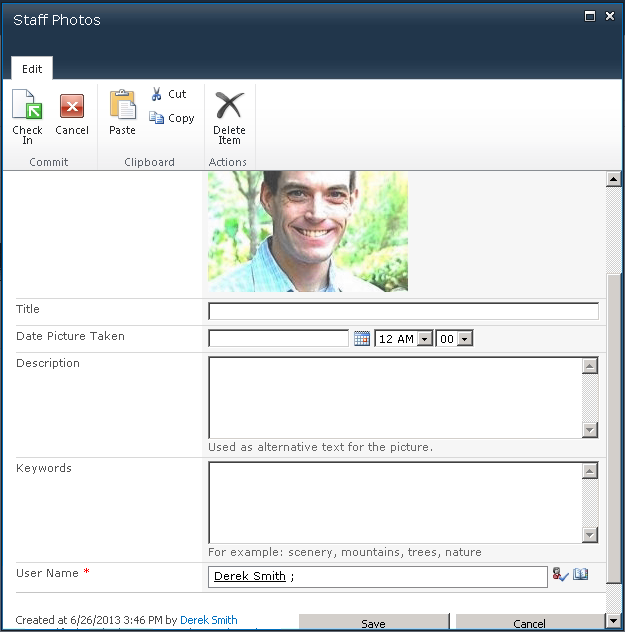
    To test the workflow out, we’ll add a new image to our Photo Library, being sure to select a person in the User Name field.  We also need to make sure we Check In the record, since workflow will not run on a checked out item.
    09_AddNewPhoto

    Clicking on the item and viewing its Workflow status will let us see if the Workflow ran successfully.

    11_WorkflowStatus

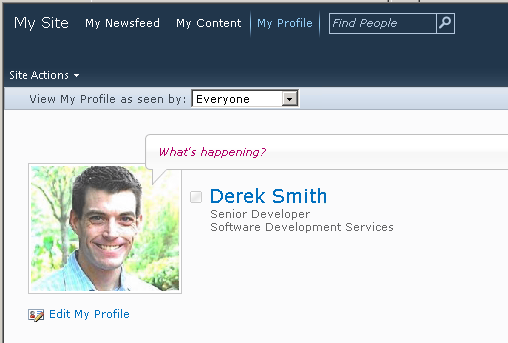
    Finally we can go to the user’s MySites profile page and confirm that the image is in place.
    10_MySitesProfileWithPhoto

    If the workflow code encounters any exceptions, they will be logged to the ULS file, so you can check there to see what happened.

  • How to Import user photos in to MySites profile

    I’ve come across several SharePoint installations where the HR department has used a Picture Library to store employee headshots.

    The frequent request is how to get those images on to the user’s MySites profile so they appear in search results and permissions lists. This post will walk through the process I used to pull the Image url from the Pictures Library and update the user’s profile using Powershell.

    Associate Picture Library record to a user name

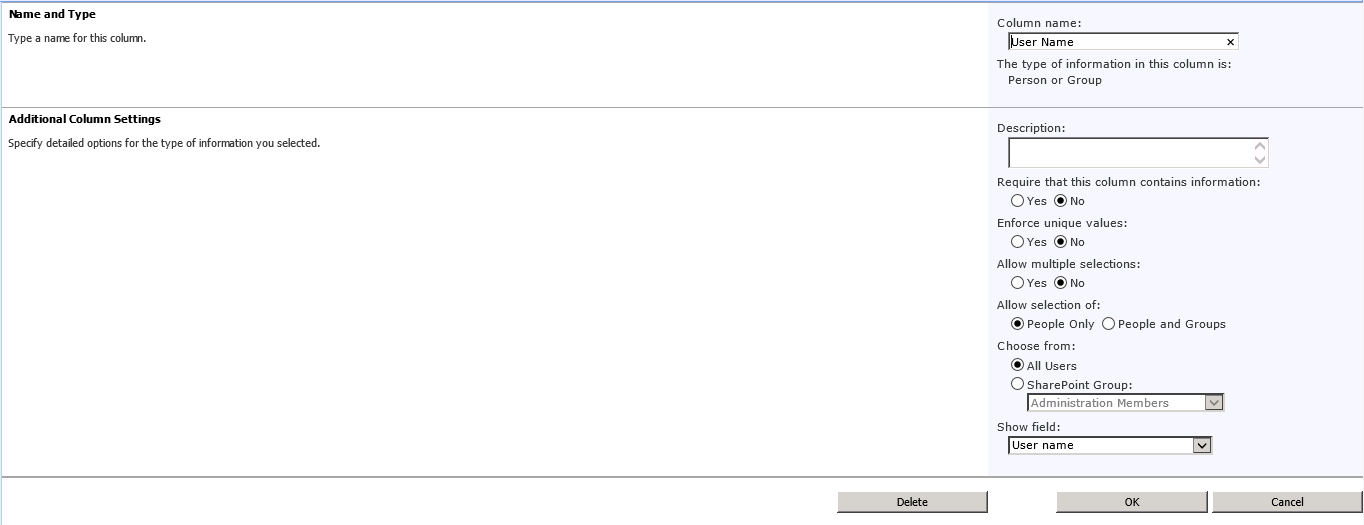
    The first thing that is needed is a way to identify the Photo according to the employee. The simplest way to do this is by adding a ‘Person or Group’ column to the Photo Library Content Type. This column will let you use the People Picker to select their domain account, which is exactly what is needed to retrieve their MySites profile record.

    Add-Username-column

    Powershell Script

    The script is pretty straight forward.  Connect to the Picture Library, iterate through each entry, and for each one retrieve and update the User Profile record.  (The script below is adapted from what is found here.)

    The trick comes mostly from extracting the Domain user name from the column we just added.

    Add-PSSnapin Microsoft.SharePoint.Powershell
    
    #Site URL
    $mySiteUrl = "https://mysites.contoso.com/"
    #The picture library site/web Url
    $pictureLibUrl = "https://sara2.contoso.com/HumanResources/"
    #The name of the picture library 
    $pictureLibName = "Staff Photos"
    #The internal name for PictureURL property on Profile
    $profilePictureURLAttribute = "PictureURL"
    #The internal name for Login property on Profile
    $profileLoginAttribute = "AccountName"
    
    #Get site objects and connect to User Profile Manager service
    $site = Get-SPSite $mySiteUrl
    $context = Get-SPServiceContext $site
    $profileManager = New-Object Microsoft.Office.Server.UserProfiles.UserProfileManager($context)
    $profiles = $profileManager.GetEnumerator()
    
    #Get web object and connect to Picture Library
    $web = Get-SPWeb $pictureLibUrl
    $gallery = $web.Lists[$pictureLibName]
    
    write-host $gallery.ItemCount.ToString() "photo records found."
    
    foreach ($photo in $gallery.Items ) {
    	#get user assigment from column
    	$fieldUser = [Microsoft.SharePoint.SPFieldUser]$photo.Fields.GetField('User Name')
    	$fieldUserValue = [Microsoft.SharePoint.SPFieldUserValue]$fieldUser.GetFieldValue($photo['User Name'])
    
    	if ($fieldUserValue) {
    		$username = $fieldUserValue.User.UserLogin.ToString()
    		if ($username) {
    			#retrieve user's Mysites profile
    			$profile = $profileManager.GetUserProfile($username)
    			if ($profile) {
    				#$photo.url will contain the doc lib path
    				$newPictureUrl = $pictureLibUrl + $photo.Url
    				$profile[$profilePictureUrlAttribute].Value = $newPictureUrl
    				$profile.Commit()
    				write-host "User: " $username "PictureUrl: " $newPictureUrl
    			}
    		}
    	}
    }
    
    #clean up
    $web.Dispose()
    $site.Dispose()
    
    #create thumbnails in Mysites
    Update-SPProfilePhotoStore -MySiteHostLocation $mySiteUrl

    There are two main things to point out. First is using the SPFieldUser and SPFieldUserValue objects to pull out the domain name from the User Name field.

    #get user assigment from column
    $fieldUser = [Microsoft.SharePoint.SPFieldUser]$photo.Fields.GetField('User Name')
    $fieldUserValue = [Microsoft.SharePoint.SPFieldUserValue]$fieldUser.GetFieldValue($photo['User Name'])

    Second is that after you have assigned the Url to the User Profile and saved it, you must run the Update-SPProfilePhotoStore cmdlet in order to properly create the necessary thumbnail images used by MySites.

    #create thumbnails in Mysites
    Update-SPProfilePhotoStore -MySiteHostLocation $mySiteUrl

    Confirm Photo is on MySites Profile

    After running the script, you can confirm the photo assignment by either visiting the user’s MySites profile page, or by editing the profile in Central Admininistration.

  • Security trimming the SharePoint Ribbon

    Security trimming the SharePoint Ribbon

    The SharePoint 2010 ribbon control provides various toolbars used by content authors and contributors, particularly when creating and editing Publishing pages.

    But what if your organization doesn’t want to allow certain user groups to change formatting, or select different fonts, in order to maintain a standardized style.  In this case, dynamically changing the ribbon control based on the user’s permissions or group membership allows an organization to determine what and how a user may do while editing content.

    The default Edit Ribbon displays as follows when the user selects an HTML content area:

    default edit ribbon

    Here are the revisions to the ribbon we will make.  Some buttons will be removed altogether, and others will be security trimmed.

    Desired trimmed ribbon

    Creating a custom Ribbon Trimming Control

    To apply the changes to the ribbon, we’ll create a basic control that can be added to the Master Page.  Start by creating a new Empty SharePoint Project in Visual Studio 2010.

    Add references to System.Web and Microsoft.Web.CommandUI.

    Add a class to the project as follows:

    using System;
    using System.Web.UI;
    using System.Web.UI.WebControls;
    using System.Web.UI.WebControls.WebParts;
    using Microsoft.SharePoint.WebControls;
    using Microsoft.SharePoint;
    
    namespace MyApp.TrimRibbon
    {
      public partial class RibbonSecurityTrimmer: UserControl
      {
        protected void Page_Load(Object sender, EventArgs e)
        {
          SPRibbon ribbon = SPRibbon.GetCurrent(this.Page);
          if (ribbon != null)
          {
            //remove following controls for all users
            ribbon.TrimById("Ribbon.EditingTools.CPEditTab.Font.Fonts");
            ribbon.TrimById("Ribbon.EditingTools.CPEditTab.Font.FontSize");
            ribbon.TrimById("Ribbon.EditingTools.CPEditTab.Font.FontColor");
            ribbon.TrimById("Ribbon.EditingTools.CPEditTab.Font.FontBackgroundColor");
            ribbon.TrimById("Ribbon.EditingTools.CPEditTab.Markup.LanguagesLabel");
            ribbon.TrimById("Ribbon.EditingTools.CPEditTab.Markup.Languages");
    
            //remove View HTML markup control for anyone who does not have Full Control rights to the site.
            if (!SPContext.Current.Web.DoesUserHavePermissions(SPBasePermissions.FullMask))
            {
              ribbon.TrimById("Ribbon.EditingTools.CPEditTab.Markup.Html");
            }
          }
        }
      }
    }

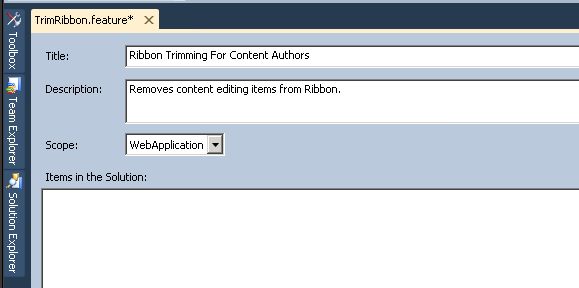
    Create a Feature to deploy this project’s assembly in to the GAC.

    RibbonTrim Feature

    Be sure to set the Scope to WebApplication so the assembly is globally available.

    Set up the deployment package to include the Feature you just set up.  Keep in mind you’ll need to ensure that a Safe Controls entry is added to the web.config file for the web application during deployment.  

    Deploy to the SharePoint farm and activate the Farm solution.  The assembly should be provisioned in to the GAC (which you can confirm by opening Windows Explorer to c:\windows\assembly.)

    Updating the Master Page

    Open Master Page (either in a branding solution, or using SharePoint Designer)

    Add Register tag before the <html> tag to pull in Assembly.

    <!-- Ribbon Trimming Control -->
    <%@ Register TagPrefix="MyApp" Namespace="MyApp.TrimRibbon" Assembly="MyApp.TrimRibbon, Version=1.0.0.0, Culture=neutral, PublicKeyToken=bda84fa329198d63" %>

    Add the control tag in Body section of Master Page.

    <!-- control to trim ribbon -->
    <MyApp:RibbonSecurityTrimmer id="RibbonTrim1" runat="server"/>

    Save and deploy master page.  If you’re using SharePoint Designed, check in and publish your changes.

    To confirm the security trimming is applied, load a page that uses the Master Page you modified, go in to edit mode, and view the revised ribbon.

    Here it is for a user without Full Control rights

    trimmed ribbon

    Here it is for a user with Full Control rights (notice the return of the HTML drop down near the right side.)

    trimmed ribbon full control

    MSDN has a full list of the enumerated SharePoint Permissions and a list of the button control ID values.

    This blog post maps those permissions to the Permission levels typically associated to SharePoint groups.

    Using this approach, you can easily create different variations of the Ribbon for each group of authors, contributors or editors, just by applying different checks using the SPContext.Current.Web.DoesUserHavePermissions method.

    If you need to add additional parameters to control the trimming, you can do that by exposing public properties in your class and setting them in the control tag when you place it on the Master Page.

  • Locked file in SharePoint Configuration Cache

    This post will deal with all of the following fantastic error messages:

    Access to the path C:\ProgramData\Microsoft\SharePoint\Config\<guid>\<guid>.xml is denied.

    File system cache monitor encountered error, flushing in memory cache: System.IO.InternalBufferOverflowException: Too many changes at once in directory:C:\ProgramData\Microsoft\SharePoint\Config\

    It all began for me when attempting to do a routine clearing of the SharePoint configuration cache in the manner that is well documented by Microsoft and various bloggers.  All went well, so I thought, but there were two oddities left behind:

    1. the cache.ini file never updated with a new value after resetting it to 1
    2. there was an odd file with an xml.tmp extension on it that would never go away

    I tried repeating the steps to clear the cache, but every time, those two results would occur.  Meanwhile, my ULS logs were getting flooded with the 888k File system cache monitor encountered error entries, and the CPU utilization on that server would spike to 100% about every 5 minutes.

    Every other article discussing the configuration cache suggests that just clearing it will resolve these issues.  But not for me.

    The next clue that something was not right was when I tried to issue a Powershell command to update a Web Application object.  There was a nervous pause, then the ‘Access denied’ error would be displayed.  Interestingly, the file that was indicated in the error had the same Guid filename (but without the .tmp extension) as the file that wouldn’t go away.

    Thinking I could just delete this file manually, I opened Windows explorer and tried to delete it.  Nope, Access Denied.

    I then looked a the properties of the file, and was told ‘You don’t have permissions to view the security information.’  What?  I’m an administrator.  Don’t tell me I don’t have permissions.

    Googling…googling….googling.

    After finally going down the ‘how to delete a locked file’ route, I came to this post on Serverfault, which introduced me to Lockhunter.

    Download, install, browse to C:\ProgramData\Microsoft\SharePoint\Config\GUID.

    Lockhunter showed about a half-dozen locked files, including the one I was getting the Access Denied error on.  The owner of the file?  miiserver.exe

    This process is none other than the Microsoft Forefront Identity Manager service used by the SharePoint User Profile Synchronization feature.

    After stopping the SharePoint Timer service and the SharePoint Administration service, I opened Central Admin, browsed to Services on server, found the User Profile Synchronization Service entry, and clicked Stop!

    Ever so slowly the service stopped, and when I refreshed Lockhunter, the entry for miiserver.exe was gone.

    A quick browse back to the Config directory showed that the xml.tmp file was gone, and the value in the cache.ini file had been restored back up to a value that wasn’t 1.

    I definitely hope this helps others who find themselves in similar situations, at least offering a process to find out the culprit.

  • Why every app should have a status page.

    Many years ago, after receiving a promotion, I finally was able to accomplish a goal I had set out for myself.  I bought a BMW.  The 10 year old 325i the car I had fallen in love with and was now in a position to acquire.

    One of my favorite features of the car was a small collection of red lights positioned above the windshield.  Every time you’d start the car, these lights would all come on, then one by one they’d go out.  Each light corresponded to a certain system or status check being run.  If a light stayed lit, it meant you might have a tail light out, or be low on windshield washer fluid.  It was, in my view, one of those elegant demonstrations of German engineering.

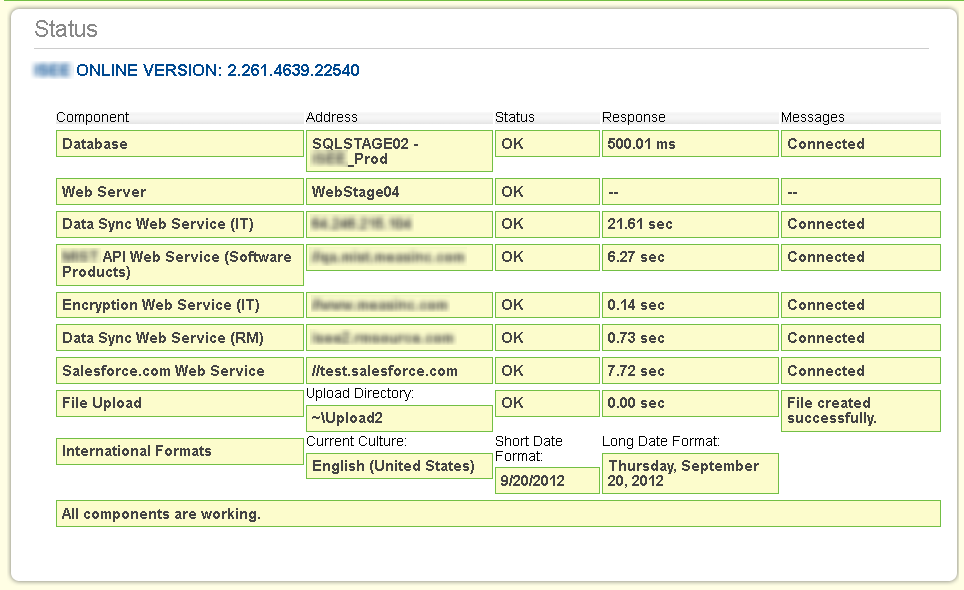
    As a developer, getting status on a system is a fundamental part of ensuring proper behavior, diagnosing issues, and validating assumptions.  And so I have come to always ensure that the apps I develop have a status page, and I encourage you to do so as well.

    There are some essential things to check:

    1. Can I connect to the database?
    2. Can I upload a file and/or write to the file system?
    3. Can I connect to external services or APIs?
    4. Can I send an email?

    Here is a sample from one of my projects.  You can see it runs through a series of checks, and shows results, response times, and any messages or alerts.

    Here’s the same page after I force an error.


    Your status page can be as detailed or general as you need.  What is important is to give yourself or your team enough information to make a decision or solve a problem.

    A few other things to consider –

    1. If your status page would contain sensitive information, be sure to properly mask or protect it.  It may or may not be feasible to put the status page in an area of your app that requires authentication, because if that authentication fails, you could never see the page.  But giving it an obscure Url or restricting its view to certain networks may be reasonable measures.

    2. Be sure to update your status page as you add features or new integration points to your app.

    3. Including a version number for your app is especially helpful when diagnosing problems.

    How are you or your team using status pages?  What must-have checks do your pages contain?