Category: SharePoint

  • PowerApps Set SharePoint Person field to Current User

    PowerApps Set SharePoint Person field to Current User

    It seems like such a typical request.  And yet, so many hoops to jump through.

    I’ll note at the onset that this post is based on PowerApps 2.0.650

    My scenario is familiar.  I have a SharePoint record, and I am using a PowerApps screen as an Approval type form.

    In my SharePoint item I have fields for Approved (Date/Time) and ApprovedBy (Person or Group).

    So when I save my form, I’d like these fields to be populated with the current time and current user.

    PowerApps basically provides three avenues for updating a record: SubmitForm(), Update(), and Patch()

    SubmitForm is the simplest and uses databound fields.

    Update() allows you to select and update a record (or records) with any values you want, either from your form or otherwise.  But, if you don’t provide a value for a column, it will be blanked out.  Not the greatest.

    Patch() does a bit better than Update in that it will allow you to selectively update a single column and leaves all other values intact.  However, you have to map every column you want to update, so if you have a record with lots of fields, you would have to set values for them all in your Patch() statement.  Annoying.

    So what I really wanted to accomplish was to set default values for my databound controls that may to the Approved and ApprovedBy fields, then use SubmitForm() to sweep up all the values and update the record.

    Here’s the approach that worked, and properly passes the Current User through to the Person and Group field:

    1. Set the OnVisible property of my Screen to set a Context Variable with a representation of the current User.
    2. Add a DataCard for the Person field to my EditForm.
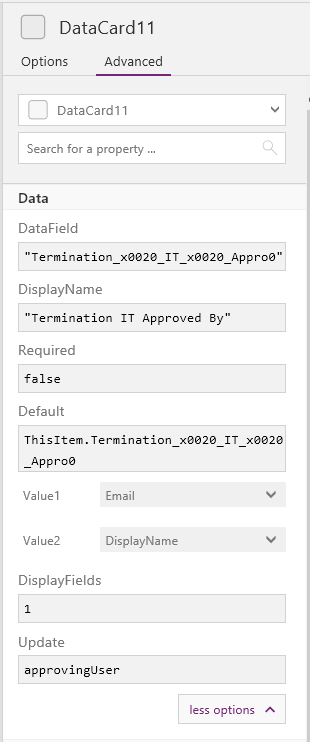
    3. Set the Update property of the DataCard to the name of the Context Variable.  This becomes the value passed by the SubmitForm() method to the column in my datasource.
    4. Set the OnSubmit() property of my Save button to SubmitForm(FormName)
    5. Set the Visible property on the DataCard to False so it is not shown on the form.

    Let’s break this down first by looking at how the Person record is represented.  PowerApps uses JSON style notation for objects.  In this case, there is a special object for a SharePoint User object, as seen below:

    { 
      '@odata.type':"#Microsoft.Azure.Connectors.SharePoint.SPListExpandedUser", 
      Claims:"i:0#.f|membership|" & Lower(User().Email), 
      Department:"", DisplayName:User().Email, 
      Email:User().Email, 
      JobTitle:".", 
      Picture:"."
    }

    A few things to note:

    1. If you’ve used SharePoint on-premise, then the formatting of the claims username may appear odd, but it works for Office365.  If you are connecting to an On-Premise SharePoint data source using a Gateway, then this format may need to change for Windows Accounts.
    2. From what I could tell, the Email property is the most important – even if the other properties (Department, DisplayName, JobTitle, Picture) are not populated, SharePoint will identify the correct user.
    3. Be sure to use the SPListExpandedUser data type.  There is also SPListExpandedReference (used for Choice fields) but it will fail when using a Person field.
    4. You’ll get an error saying ‘A value must be provided for item’ if anything is incorrect.

    So by setting a ContextVariable when the screen loads, I can then pass that object as the properly formatted value during the SubmitForm() call.
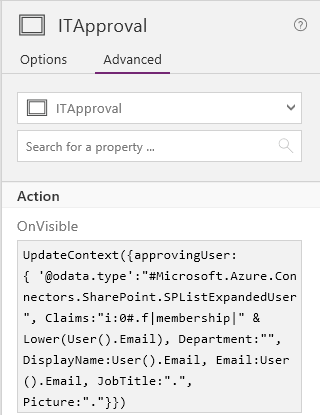
    Once the variable is set, we then use it on the data card as the Update value
    Things like this definitely make PowerApps a tool that requires some technical skills to achieve various business requirements.  But as the product matures, I am hopeful that shortcuts will be implemented to make these common scenarios less cumbersome to address.

  • Requested Value ‘Text’ was not found error using SharePoint Online CSOM

    Requested Value ‘Text’ was not found error using SharePoint Online CSOM

    I’ve recently been involved in creating a SharePoint Hosted add-in for a customer, and part of that process includes creating site columns, content types, and libraries in the host-web where the add-in is deployed.  The Office Dev Patterns and Practices team has a great starting point example for this technique using the JavaScript (JSOM) api.

    All was going well – we built and tested our code against a Developer site collection in our Office 365 tenant, and then packaged it up to deploy in the customer’s tenant.

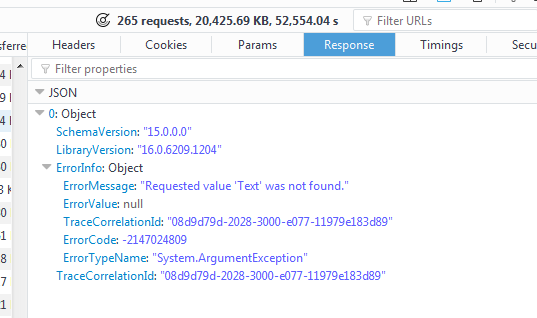
    But no sooner did we attempt to run the provisioning script did we get the following error when checking for site columns

    This was a Tuesday morning.  We reviewed and reran the add-in on our Dev tenant, and it continued to work.

    At first I thought maybe it was something having to do with the asynchronous callbacks from the JSOM api – and that we were dealing with a timing or sequence issue.  But as I debugged it revealed that the error was thrown on the initial query – never allowing subsequent calls to be made.

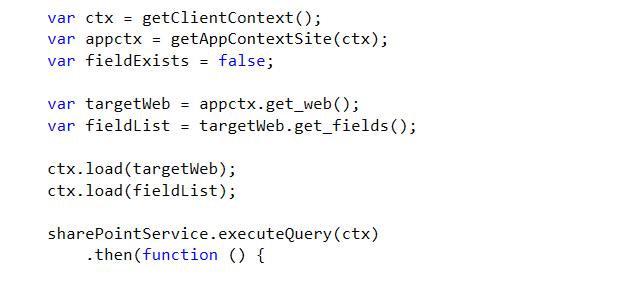
    Here’s the basic code I was running to query the list of site columns from the host web.

    As I continued to troubleshoot on my Dev tenant, suddenly, I started getting the same error in that environment.  Strange, right?  This delay made me wonder if there may have been a rollout of a CSOM update that hit my client’s tenant that morning, then my tenant by the afternoon.

    I worked with my customer and we opened a MS Support ticket.

    The support engineer ran a similar API call against a tenant in the same datacenter as ours, and it came back clean.

    We did a screen-share, and I demonstrated the error and provided him the CorrelationID returned in the response.  From there he was able to see a stack trace indicating that the failure occurred on a Enum.TryParse() method call.  Interesting.  He confirmed our code looked okay, and escalated the case to a Development engineer.

    On our second call, we again demonstrated the error when calling the api against our tenant and our client’s.  At first the MS engineer thought it may be related to lookup type columns, so we manually removed a couple that were User and Group type columns.  No change.

    We then decided to try to manually remove all the custom columns and reprovision from scratch.  Upon clicking on the first one (called ‘Current Item Title’) we got an error in the UI.  That was unexpected.

    One thing I noticed, however, was that the Current Item Title column, which should have been a ‘Single line of text’ was actually showing as a ‘Hyperlink or Picture’ type.

    I returned to my code and checked my manifest of field definitions.  Quickly I realized the issue, as shown in the before and after images below.

    The Field Type=’URL’ indicated that it was a Hyperlink field – but the Format=’Text’ was causing the exception, since the value ‘Text’ was not a valid option in the SPUrlFieldFormatType enumeration.  Suddenly it all came clear.  I’d copied and pasted the field definition, and changed the wrong parameter.

    We had to manually remove the column using PowerShell (since it caused the error through the UI).  I then corrected the field schema definition and republished my add-in.  This time through, the provisioning script ran clean, and correctly created the Current Item Title column as a text field rather than URL.

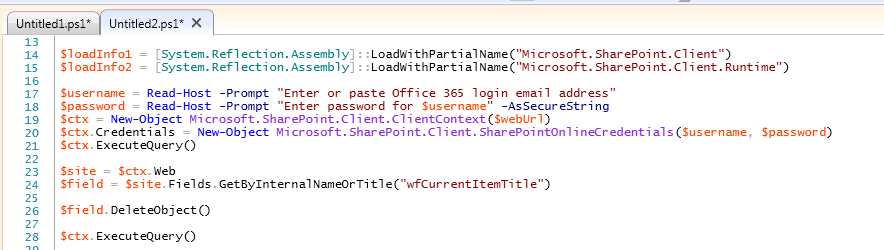
    UPDATE: Here’s the PowerShell to remove the field.  Basically we just retrieve it by name, then delete it – all using the SharePoint Client Object Model (CSOM).


    (I did complain to the MS engineer about why the API would allow me to pass in a bad value when creating the field, yet throw an error when trying to retrieve the field.  He offered me the url to the UserVoice for SharePoint where I could submit my complaint.)

    This cut-and-paste error cost our project a full week on the timeline (due to the back and forth delays with the MS escalation, etc.) and required 2 Microsoft engineers to assist in resolving.

  • The issuer of the token is not a trusted issuer. [Beware of hidden characters]

    The issuer of the token is not a trusted issuer. [Beware of hidden characters]

    There are a lot of articles related to this error message, typically seen when trying to run an on-premise SharePoint provider-hosted add-in in a high trust configuration.  I know because I read all of them.

    For me, there was no (visible) evidence that the IssuerId in my web.config was different than the RegisteredIssuerName value of my Trusted Security Token Issuer entry.  I checked and rechecked it dozens of times.

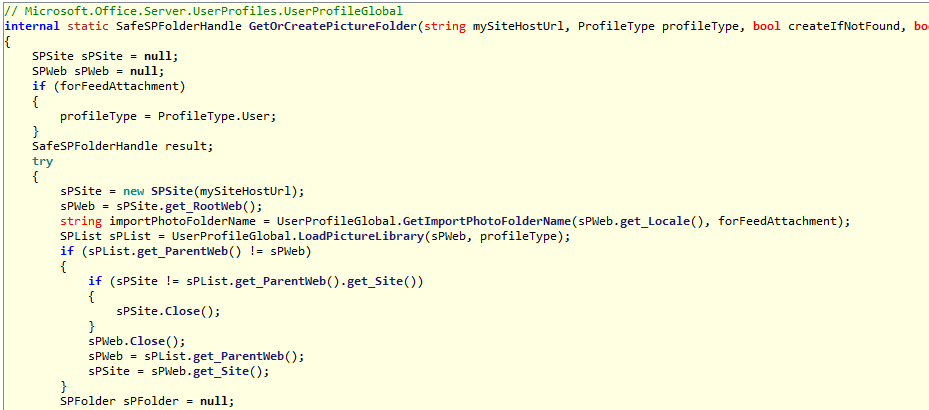
    Finally I put some tracing in the the code to see what was actually being sent to the SharePoint.  The creation of the authentication token is in the TokenHelper.cs class in the IssueToken method (about line 778).  Line 796 is where it gets the issuer id value.

    token-helper-code

    Here’s the screenshot of our trace log file reporting out the value being read from the web.config.  Notice anything unusual?

    issuerid-hidden-character

    There are some warnings related to cutting-and-pasting the Certificate Serial number picking up hidden characters – but somehow our entry in the web.config for the IssuerId also got a hidden character inserted in.  The “??” is passed along as part of the issuer ID value and causes the mismatch.

    I manually retyped the line in the web.config, saved, and reran the app.  This time it came through clean with no errors simply because the values exactly matched.

    By all appearances the values were the same, but the hidden character caused them to be different.

    Add this to your checklist of things to review if you hit this error – hopefully it won’t take you several days like it too me and my team.


  • Page Layout not shown in Design Manager

    Page Layout not shown in Design Manager

    If you have created a custom page layout from Design Manager, it will have an .html extension.  When this file is uploaded to the _catalogs/masterpage gallery, an event receiver will convert the file to a matching .aspx page layout.

    However, I found a case where the .html file will not show in the Design Manager as you would expect.

    I’ve been using the Patterns and Practices console application method for deploying branding assets, and it is a great way to push your branding related files up to a target SharePoint site.  However, in the UploadPageLayout() method, it is assigning all files that are uploaded with the Page Layout content type.

    If you use this against a .html file, it will upload fine, and will generate the .aspx file, but the .aspx will not be published, and the page layout will not be shown in Design Manager.

    I’ve adjusted the SetPageLayoutMetadata() method as shown below to properly set the .html file with the Html Page Layout content type, which will allow it to be seen in the Design manager – as well as ensuring that the corresponding .aspx is published.

    private static void SetPageLayoutMetadata(Web web, File uploadFile, string title, string publishingAssociatedContentType)
    {
      var parentContentTypeId = "0x01010007FF3E057FA8AB4AA42FCB67B453FFC100E214EEE741181F4E9F7ACC43278EE811"; //Page Layout
    
      if(uploadFile.Name.ToLower().Contains(".html")) {
        parentContentTypeId = "0x01010007FF3E057FA8AB4AA42FCB67B453FFC100E214EEE741181F4E9F7ACC43278EE8110003D357F861E29844953D5CAA1D4D8A3B"; //Html Page Layout
      }
    
      var gallery = web.GetCatalog(116);
      web.Context.Load(gallery, g => g.ContentTypes);
      web.Context.ExecuteQuery();
    
      var contentTypeId = gallery.ContentTypes.FirstOrDefault(ct => ct.StringId.StartsWith(parentContentTypeId)).StringId;
      var item = uploadFile.ListItemAllFields;
      web.Context.Load(item);
    
      item["ContentTypeId"] = contentTypeId;
      item["Title"] = title;
      item["PublishingAssociatedContentType"] = publishingAssociatedContentType;
    
      item.Update();
      web.Context.ExecuteQuery();
    }
    
  • How does co-editing work in SharePoint 2013?

    How does co-editing work in SharePoint 2013?

    This week I was on site with a client discussing how to further leverage SharePoint in their business, and our conversation came around to how to better equip their field engineers and staff.  Specifically, I shared about the document library Sync feature.  One question came up regarding how SharePoint will reconcile changes if one employee modifies a file from their synchronized local copy, and another employee modifies the file directly from the Document Library.

    It’s a typical question and one I thought I’d answer using a live demo.  The video below illustrates how co-editing can work for both online and offline users.  I hope you find it helpful.

    (BTW: I’m going to try to start creating more of these kinds of Q&A videos, so if you have a suggestion for a question or explanation of a SharePoint feature, please comment on this post and share your idea.)

  • New SharePoint library not showing in Quick Launch after selecting Yes in Library settings

    New SharePoint library not showing in Quick Launch after selecting Yes in Library settings

    A client reported this issue to me this week.  They had added a new Document Library to a Team Site, and had assigned specific permissions to it.  However, it was never being displayed on the Quick Launch navigation.

    We checked the obvious things:

    1. Yes, the Display this document library on the Quick Launch? setting was set to Yes.
    2. Yes, the user had permissions to the site and document library.
    3. We hid and then displayed the Quick Launch using the Site Settings -> Tree View options.

    While initially we thought this might be some weird behavior in permissions, I came across this post that mentioned the Current Navigation settings for the site.  So I checked there.

    I found that the Current Navigation settings were fine, set to display the navigation items below the current site.

    What I also found, however, was that the Structural Navigation: Sorting option was set to Sort Manually.  When I looked in the list of items available for editing and re-sorting the navigation items, the new Library was not shown.

    navigation-sort

    So I flipped the setting to Sort Automatically, and voila, the library appeared in the Navigation items display.  As soon as I saved the navigation settings with the automatic sort, the library also appeared on the Quick Launch menu.

    It appears that if the manual sort option is in force, then it is based on a snapshot of the navigation items, and you’d have to manually add the newly added library to the Navigation hierarchy.

    Hope that helps someone out there!

  • MDSFailover: Master page mismatch – SOLVED!

    MDSFailover: Master page mismatch – SOLVED!

    One of the promising new features in SharePoint 2013 is the Minimal Download Strategy, which allows pages in non-publishing sites to be rendered using AJAX callbacks rather than full round trips and page refreshes.  When it works, it provides a very seamless user experience, with only the essential portions of the page being changed.

    However, when MDS fails, there is not much to go on.  You will get some basic entries in the ULS log, but I found them to be just vague enough to not be helpful.

    One such message is as follows:

    MDSLog: MDSFailover: Master page mismatch occurred in MDS: Context Page MP (currentMPToken) = ['|WORKGROUPS|TEST:|WORKGROUPS|TEST|_CATALOGS|MASTERPAGE|SEATTLE.MASTER:2.15.0.0.0.15.0.4481.1005.2.FALSE.:en-US:en-US:RW'], MP supplied by page in URL (originalMPToken) = ['|WORKGROUPS|TEST:|_LAYOUTS|15|SEATTLE.MASTER:0.15.0.0.0.15.0.4481.1005.2.FALSE.:en-US:en-US:RW'], Current Request URL = ['https://domain.com/workgroups/test/SitePages/Home.aspx?AjaxDelta=1&isStartPlt1=1392132082249']

    A bit of context for how MDS works.  In order to be able to partially load a content page, certain elements of both the referring and destination page must be the same, namely the master page.  If the two pages are determined to have different master pages, then SharePoint must force a full page load.  The examination of the pages occurs on the /_layouts/15/start.aspx page, which is an intermediary page that is loaded as a url is followed.

    If MDS fails, the start.aspx page will then do a full redirect to the destination url.  The net effect of this failover however is a longer than normal page load since there are several redirects occuring.

    In my case, however, this didn’t make sense.  I was on a brand new Team site, and had made no master page changes.  So why was MDS reporting a mismatch?

    After hours of inspecting the page load sequences in Firebug and Fiddler, a curious observation came to light.  MDS was working fine on pages that were in the _layouts folder, such as Site Settings and All Site Content.  It was only pages in the main site that were failing.

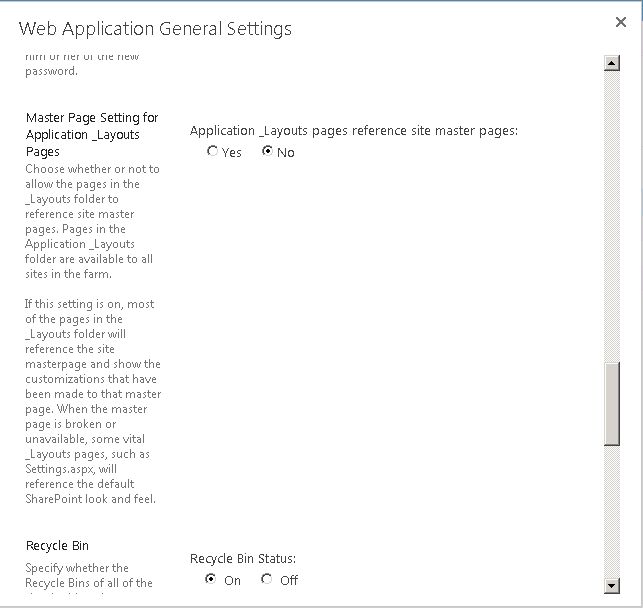
    It reminded me that in Central Administration, in the General Settings for a Web Application, there is a selection to indicate if pages in the _layouts are use the Site master page or not.

    generalsettings

    I found that if this property is set to No, the content page will render using _catalogs/masterpage/seattle.master location while the _layouts pages (including start.aspx) will render using _layouts/seattle.master.  As best as I can tell, the MDS check is looking at the start.aspx master page rather than the actual destination page’s master page to make its comparison.  While the content of these pages may be identical, since the paths are different, MDS fails over and issues the full redirect to the target url.

    On a new web application, this setting defaults to Yes, so you may only experience this behavior if you have changed it.

    I found very little about the MDSFailover online so I hope this helps the community.

  • Responsive Design in SharePoint 2010 – WintellectNOW training

    Responsive Design in SharePoint 2010 – WintellectNOW training

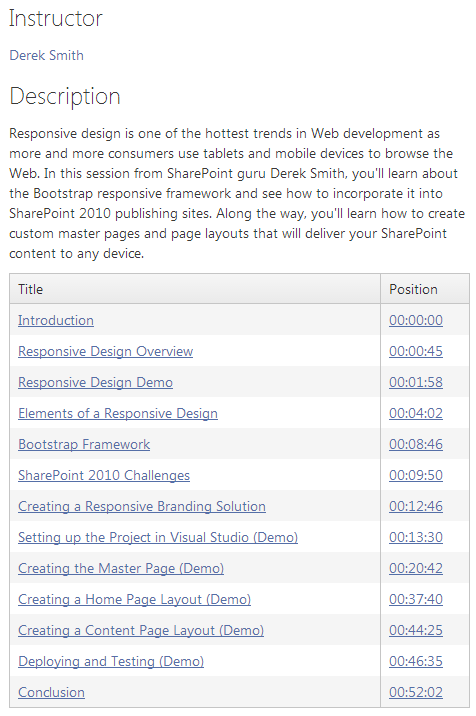
    I’m very excited to have completed my first video training course for WintellectNOW.

    Responsive Design in SharePoint 2010

    This hour-long course is an in-depth look at using the Bootstrap responsive framework in SharePoint 2010 publishing sites.  It was a lot of fun to create, and will hopefully be the first of many that I produce.

    Here’s the course overview:

    wintellectnow-rwdsp2010-overview


    I’

  • PowerView report fails –  No credentials are available in the security package

    PowerView report fails – No credentials are available in the security package

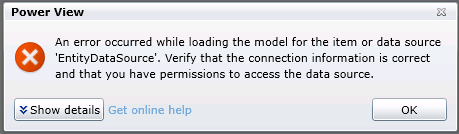
    So I’ve got a PowerView report hosted in SharePoint.  And it throws up the following when I try to load it:

    PowerView Auth fail

    The full error details are:

    <detail><ErrorCode xmlns="https://www.microsoft.com/sql/reportingservices">rsCannotRetrieveModel</ErrorCode><HttpStatus xmlns="https://www.microsoft.com/sql/reportingservices">400</HttpStatus><Message xmlns="https://www.microsoft.com/sql/reportingservices">An error occurred while loading the model for the item or data source 'EntityDataSource'. Verify that the connection information is correct and that you have permissions to access the data source.</Message><HelpLink xmlns="https://www.microsoft.com/sql/reportingservices">https://go.microsoft.com/fwlink/?LinkId=20476&amp;EvtSrc=Microsoft.ReportingServices.Diagnostics.Utilities.ErrorStrings&amp;EvtID=rsCannotRetrieveModel&amp;ProdName=Microsoft%20SQL%20Server%20Reporting%20Services&amp;ProdVer=11.0.3128.0</HelpLink><ProductName xmlns="https://www.microsoft.com/sql/reportingservices">Microsoft SQL Server Reporting Services</ProductName><ProductVersion xmlns="https://www.microsoft.com/sql/reportingservices">11.0.3128.0</ProductVersion><ProductLocaleId xmlns="https://www.microsoft.com/sql/reportingservices">127</ProductLocaleId><OperatingSystem xmlns="https://www.microsoft.com/sql/reportingservices">OsIndependent</OperatingSystem><CountryLocaleId xmlns="https://www.microsoft.com/sql/reportingservices">1033</CountryLocaleId><MoreInformation xmlns="https://www.microsoft.com/sql/reportingservices"><Source>ReportingServicesLibrary</Source><Message msrs:ErrorCode="rsCannotRetrieveModel" msrs:HelpLink="https://go.microsoft.com/fwlink/?LinkId=20476&amp;EvtSrc=Microsoft.ReportingServices.Diagnostics.Utilities.ErrorStrings&amp;EvtID=rsCannotRetrieveModel&amp;ProdName=Microsoft%20SQL%20Server%20Reporting%20Services&amp;ProdVer=11.0.3128.0" xmlns:msrs="https://www.microsoft.com/sql/reportingservices">An error occurred while loading the model for the item or data source 'EntityDataSource'. Verify that the connection information is correct and that you have permissions to access the data source.</Message><MoreInformation><Source>Microsoft.ReportingServices.ProcessingCore</Source><Message msrs:ErrorCode="rsErrorOpeningConnection" msrs:HelpLink="https://go.microsoft.com/fwlink/?LinkId=20476&amp;EvtSrc=Microsoft.ReportingServices.Diagnostics.Utilities.ErrorStrings&amp;EvtID=rsErrorOpeningConnection&amp;ProdName=Microsoft%20SQL%20Server%20Reporting%20Services&amp;ProdVer=11.0.3128.0" xmlns:msrs="https://www.microsoft.com/sql/reportingservices">Cannot create a connection to data source 'EntityDataSource'.</Message><MoreInformation><Source>Microsoft.AnalysisServices.AdomdClient</Source><Message>Authentication failed.</Message><MoreInformation><Source>Microsoft.AnalysisServices.AdomdClient</Source><Message>No credentials are available in the security package</Message></MoreInformation></MoreInformation></MoreInformation></MoreInformation><Warnings xmlns="https://www.microsoft.com/sql/reportingservices" /></detail>

    And so begins the journey of trying to uncover just which set of credentials isn’t in the right place.  Let’s stop and look at the flow that occurs when you try to load that report:

    PowerView Report hands off to BI Semantic Model (also hosted on SharePoint on the WFE server, running under an application pool)

    BI Semantic Model points to SQL Server Analysis Server Instance on your SQL Server.

    Credential check occurs on SSAS Instance to determine if adequate permissions exist for requesting user.  If so, query runs, data sent back, and report displays.  If not, we get an error like the one above.

    Like many things in SharePoint, this transaction can be governed by Kerberos, which facilitates the passing of credentials from one server or service to another.  It’s easy to confirm if this is a Kerberos issue by changing our report to use a specific username and password.

    In the PowerView gallery, change to the All Documents view, then drop down the menu for your specific report and select Manage Data Sources.

    In my case, the entry for EntityDataSource is shown.  Click on that to get the details.

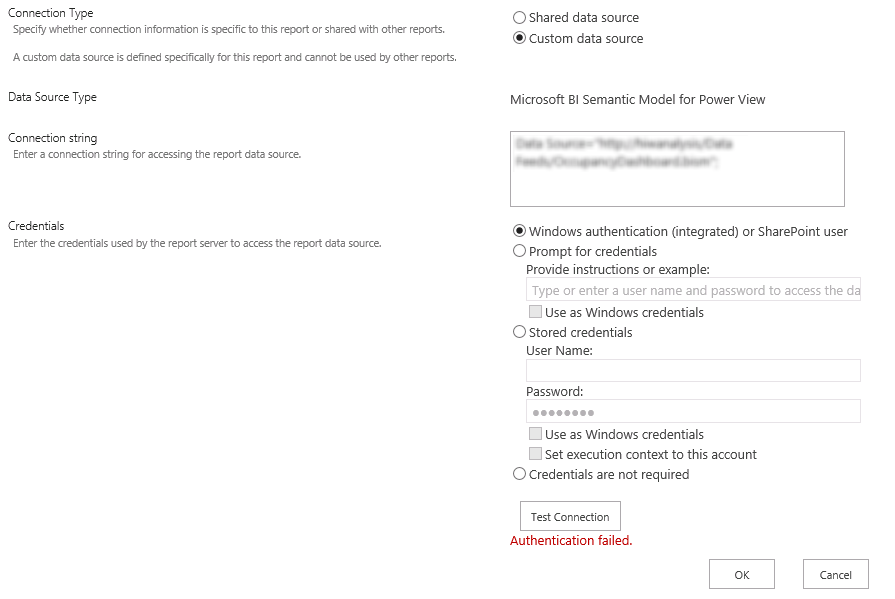
    Here’s what happens when we use the Windows authentication (integrated) or SharePoint user option and click Test Connection.  No worky.

    pass-through-fail

    Here’s what happens when we put in specific credentials and click Test Connection.

    named-user-success

    So while the symptoms and appears would point to a Kerberos configuration issue, in truth, the solution (in my case) lies with the Claims to Windows Token Service.

    By default, this service is provisioned to run as Local System.  But there is guidance to run this as a domain account.  However, in doing so, additional local security policy changes must be made on the server on which the service is running, in this case, the SQL server.

    The domain account used by the Claims to Windows Token Service needs to be granted the following rights through the Local Security Policy:

    1. Act as part of the operating system

    2. Impersonate a client after authentication

    3. Log on as a service

    You can find these settings under Administrative Tools > Local Security Policy > Local Policies > User Rights Assignment.

    No reboot is necessary for these changes to take effect.  As soon as I returned to my PowerView report and refreshed, the report loaded without error.

    Hat tip to this thread for pointing me in the right direction.